Deleting and recovering assets
Drive uses soft delete: removed files go to the Trash and can be restored, and admins can delete them permanently to free storage.
TutorialBeginnerowner, editorUpdated
Drive uses a soft-delete system: deleted files go to the trash and can be recovered.
Note
Who can delete: Owner, Admin, and Editor roles can delete both files and folders directly from Drive. The delete button appears on every asset and folder card for these roles.
Deleting a file or folder
- In the Asset Library, find the file or folder you want to delete.
- Click the trash icon on the asset or folder card (or open the asset and click Delete).
- The item moves to the Trash folder.
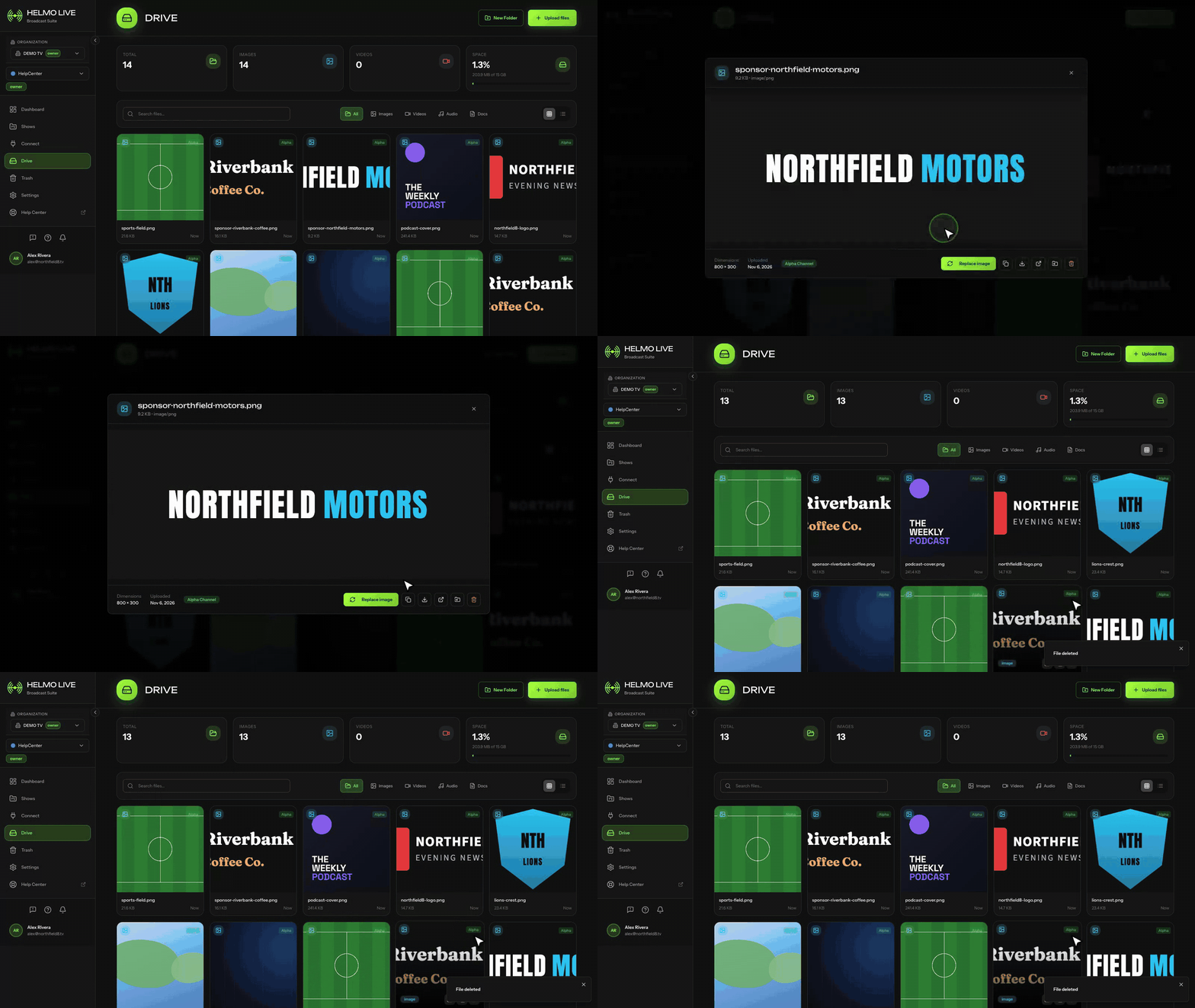
The item is not permanently removed. It's marked with a deleted_at timestamp and hidden from the main library.
Recovering an asset
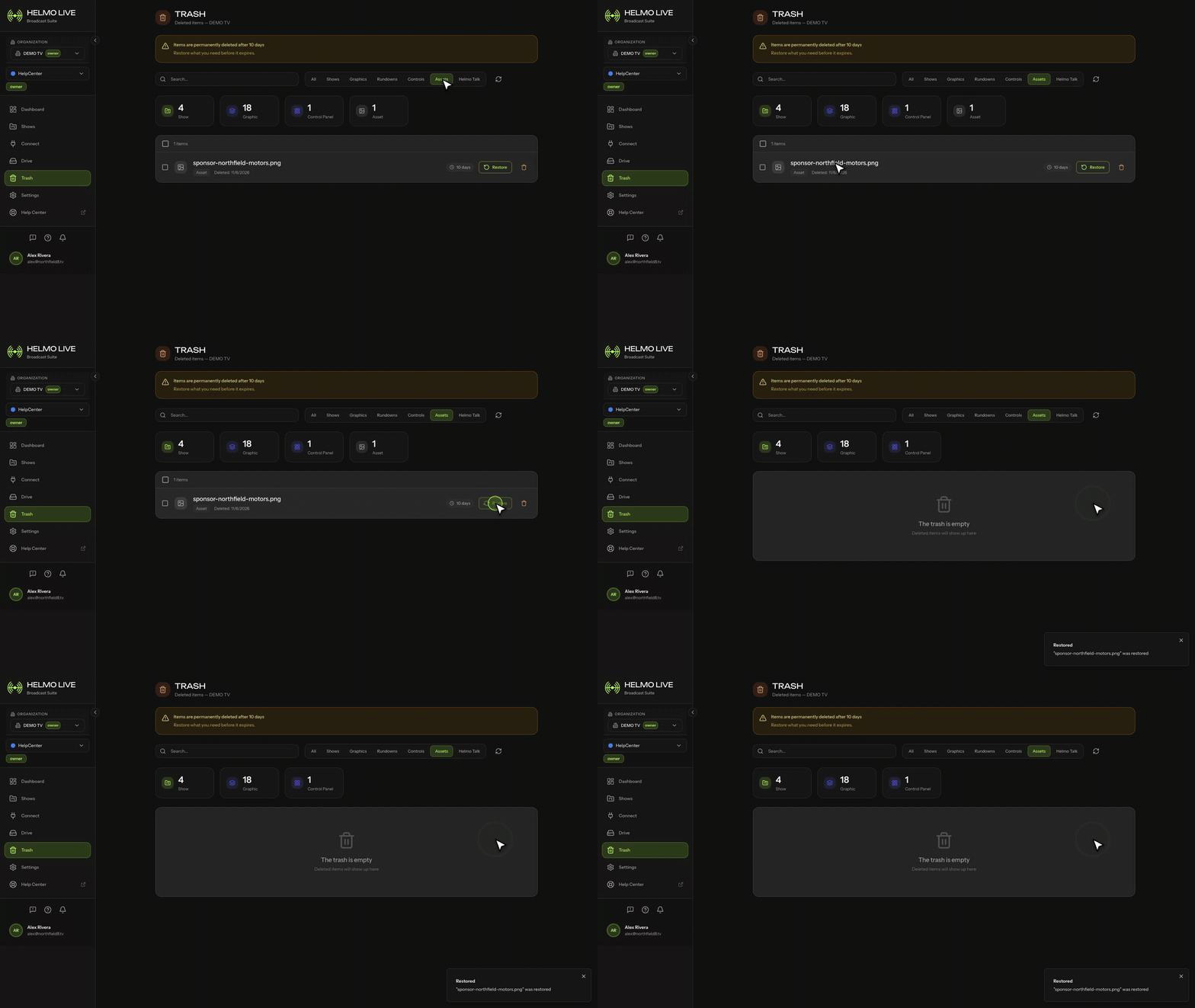
- Go to the Trash section in the Asset Library.
- Find the file you want to restore.
- Click Restore.
- The file reappears in its original location.
Permanent deletion
Workspace admins can permanently delete files from the trash. This removes the file from storage and cannot be undone.
Important notes
- Deleted assets are hidden from the editor and rundown asset pickers.
- If a graphic references a deleted asset, the image/video will appear broken until restored.
- Permanent deletion frees up storage space; soft deletion does not.