Navigating the Asset Library
Browse, search and filter your uploaded files, inspect asset details, and use the same experience in asset pickers across the app.
ReferenceBeginnerUpdated
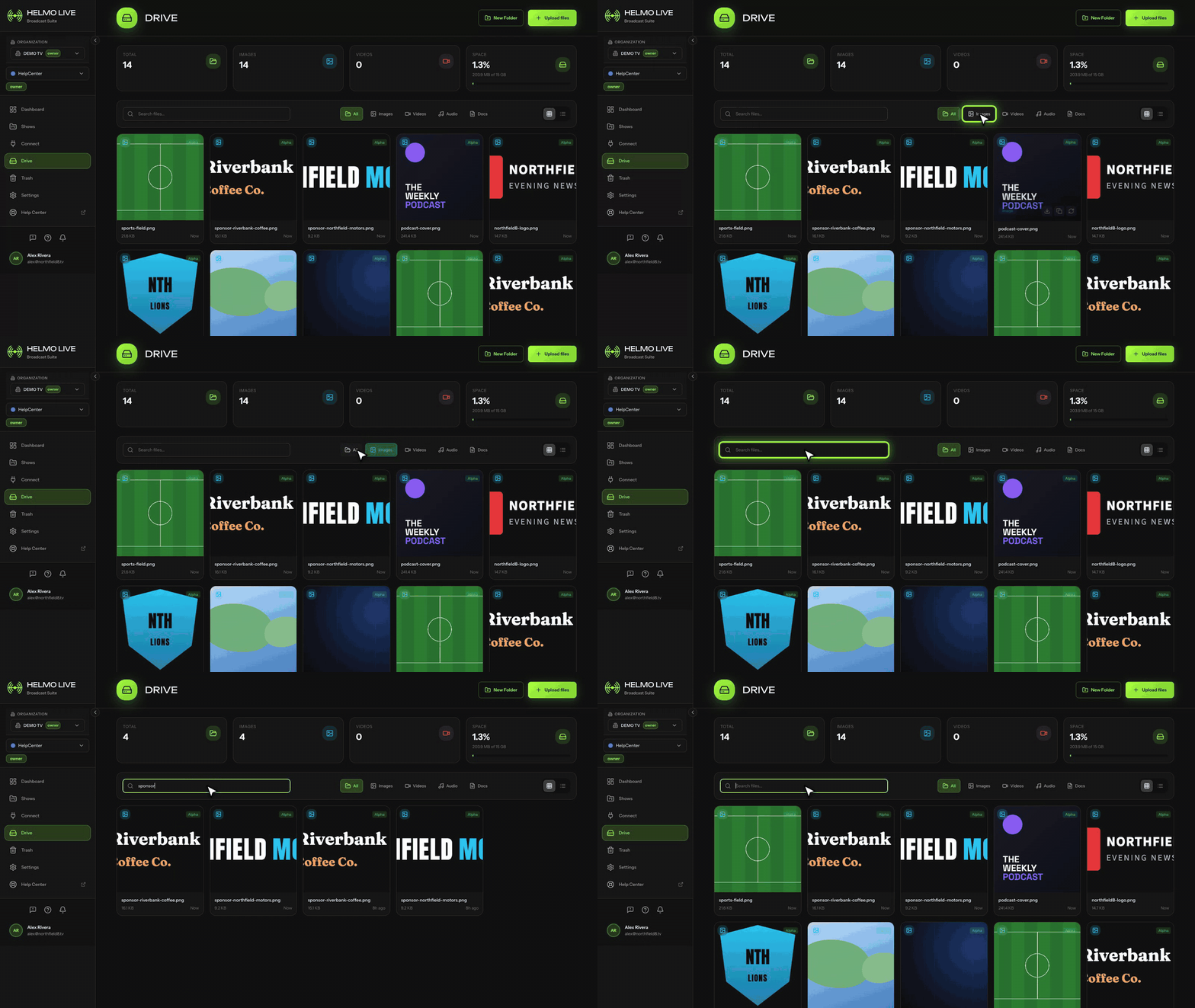
The Asset Library is your central hub for browsing, searching, and managing all uploaded files.
Layout
The library displays assets in a grid view with thumbnails. You can adjust the thumbnail size using the S/M/L toggle in the top-right corner.
Browsing
- All Assets: Shows everything in your library.
- Folders: Navigate into folder structures to find organized assets.
- Favorites: Quick access to starred assets.
- Trash: View and recover recently deleted files.
Asset details
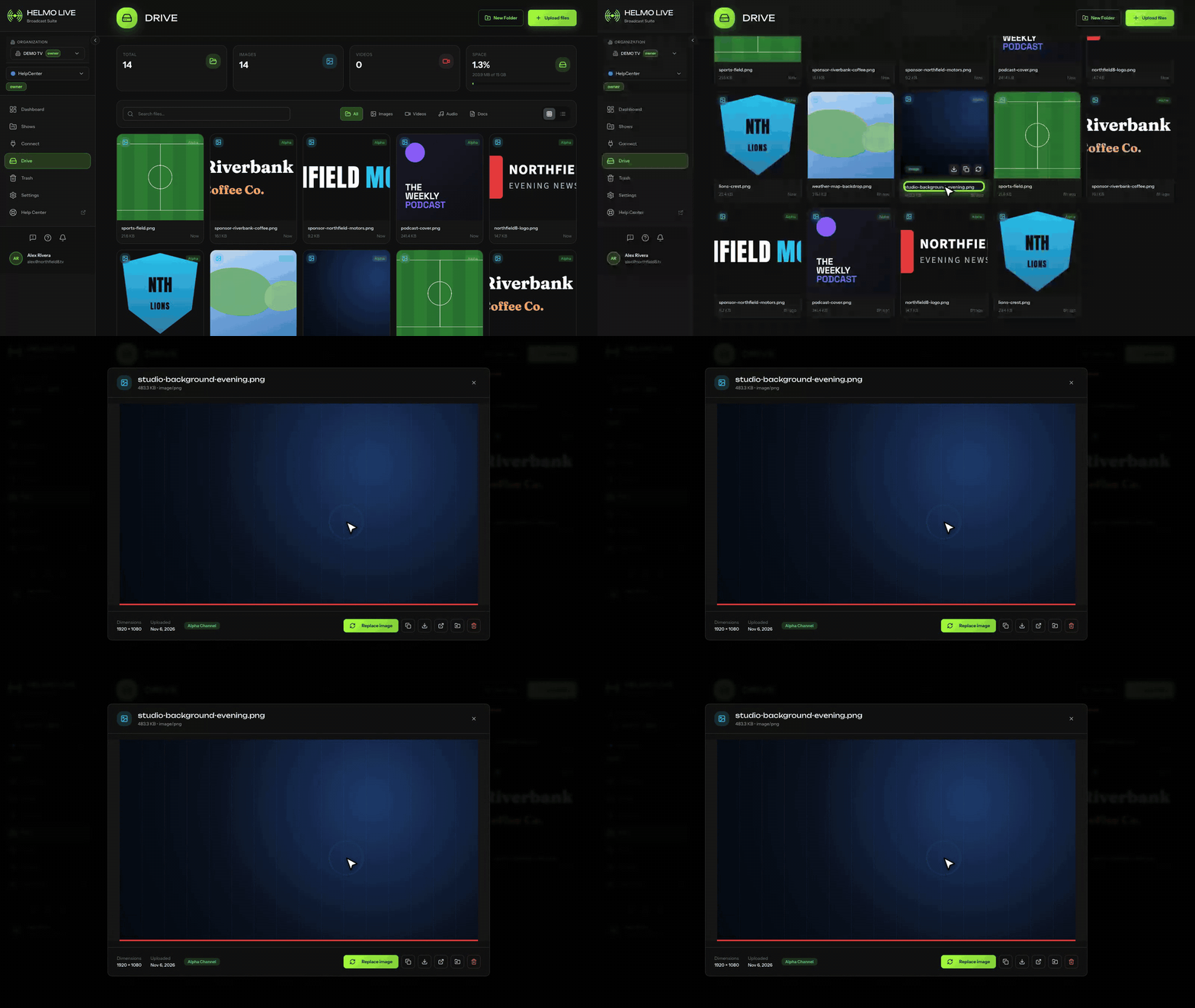
Click any asset to see its details:
- Preview: Full-size image preview or video/audio player.
- Name: The asset's display name (editable).
- Type: Image, Video, Audio, or Font.
- Size: File size in human-readable format.
- Dimensions: Width and height for images and videos.
- Duration: Length for audio and video files.
- Tags: Labels for categorization.
- Created date: When the file was uploaded.
Quick actions
From the asset grid, you can:
- Star an asset to add it to favorites.
- Delete an asset (moves to trash, recoverable).
- Copy URL to use the asset in external tools.
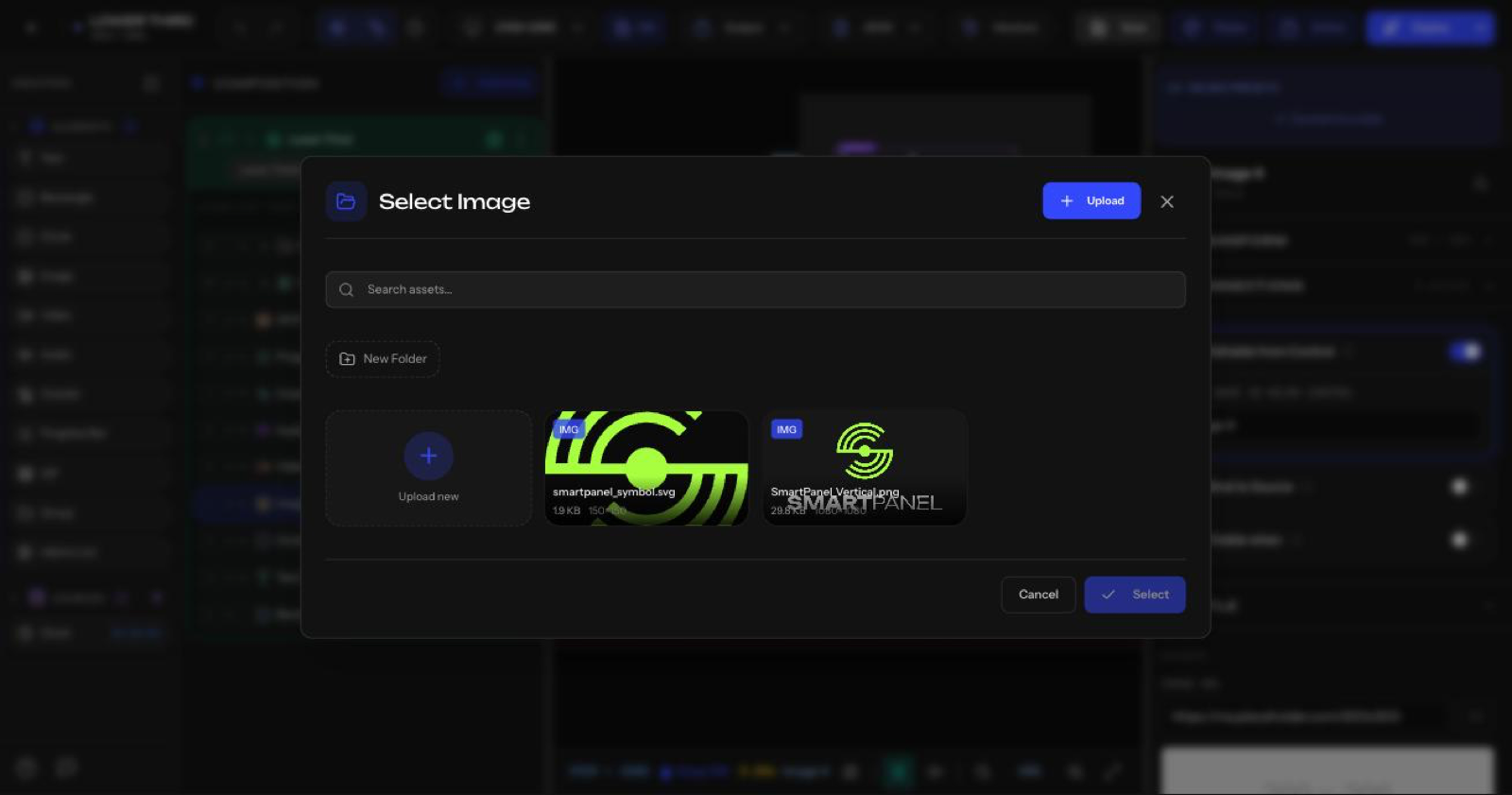
Asset pickers across the app
Note
The asset pickers used throughout Helmo Live (the Graphics editor, Helmo Presets, and the Rundown) now have full parity with Drive.
Anywhere you select an asset, the picker offers the same experience as the Asset Library:
- Folder navigation with breadcrumb: Browse into folders and use the breadcrumb trail to move back up.
- Team + global scope: See your team's assets alongside global assets in the same picker.
- Create folder: Add a new folder without leaving the picker.
- Upload to the open folder: Upload files directly into the folder you're currently viewing.