Uploading files to Drive
Drag and drop or browse to upload images, videos, audio and fonts to the Asset Library, and learn what happens during upload.
TutorialBeginnerUpdated
Upload one or more files to the Asset Library by dragging them in or browsing from your computer.
How to upload files
- Go to Asset Library from the sidebar.
- Click the Upload button (or drag files directly into the library area).
- Select one or more files from your computer.
- Drive validates each file's type and size.
- Files upload and appear in your library with thumbnails.
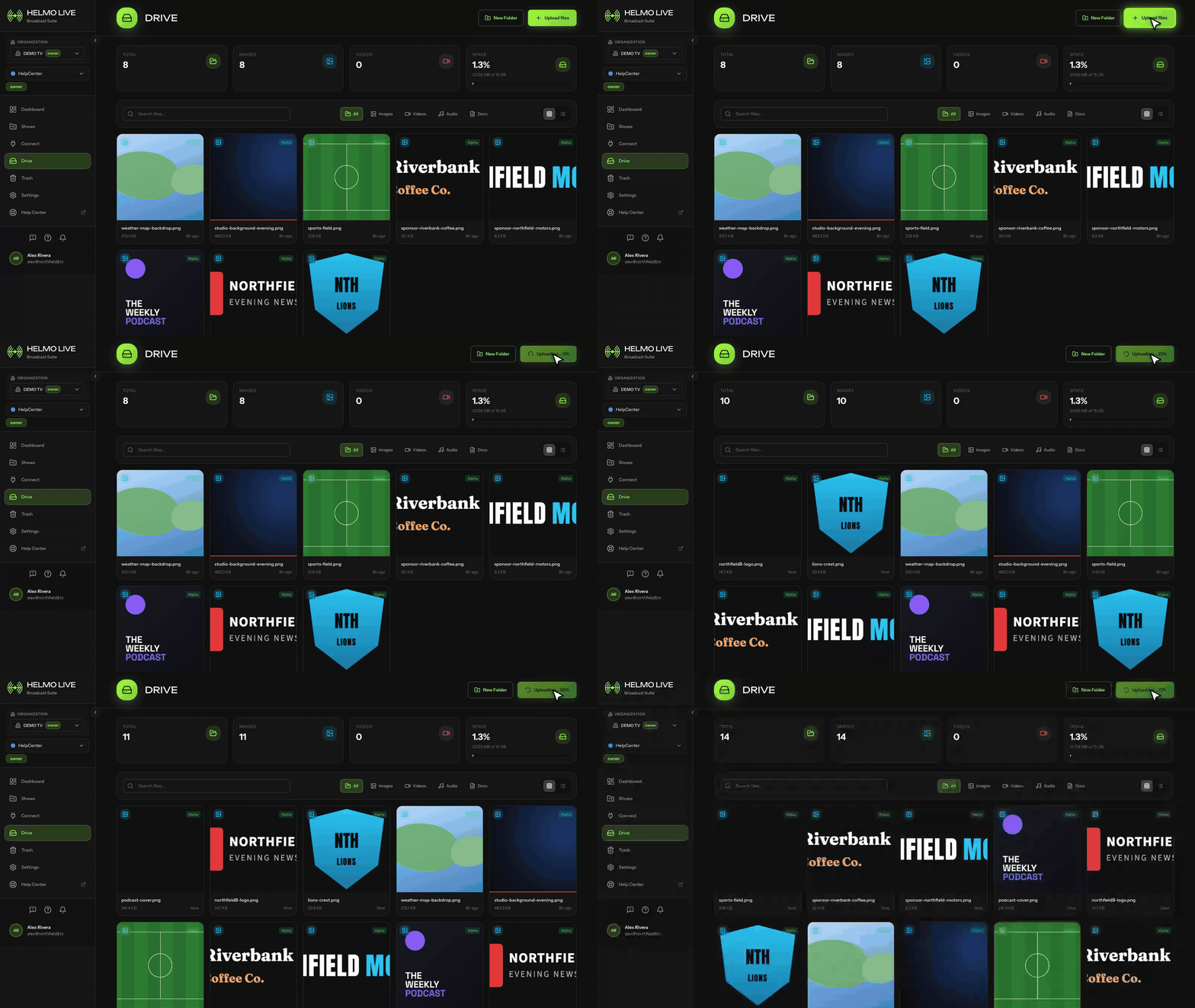
What happens during upload
- Each file is assigned a unique storage path:
{companyId}/{teamId}/{uuid}.{extension}. - Metadata is extracted automatically (dimensions for images/videos, duration for audio/video).
- The file is stored in Supabase Storage and served through the custom CDN domain.
Upload limits
File size limits depend on the type:
- Images: up to 10 MB
- Videos: up to 500 MB
- Audio: up to 50 MB
- Fonts: up to 5 MB
Unsupported file types are rejected with an error message.
Tips
Tip
Use descriptive filenames. They become the asset name in the library.
Tip
Add tags immediately after uploading to keep your library organized.
Tip
For large video files, upload during off-peak hours for faster transfers.