Copying and moving resources between shows
Duplicate or transfer graphics packages, control panels and rundown stories across Shows with Copy to and Move to.
TutorialBeginnerUpdated
You can copy or move your Graphics packages, Control panels and Rundown stories between shows in your workspace.
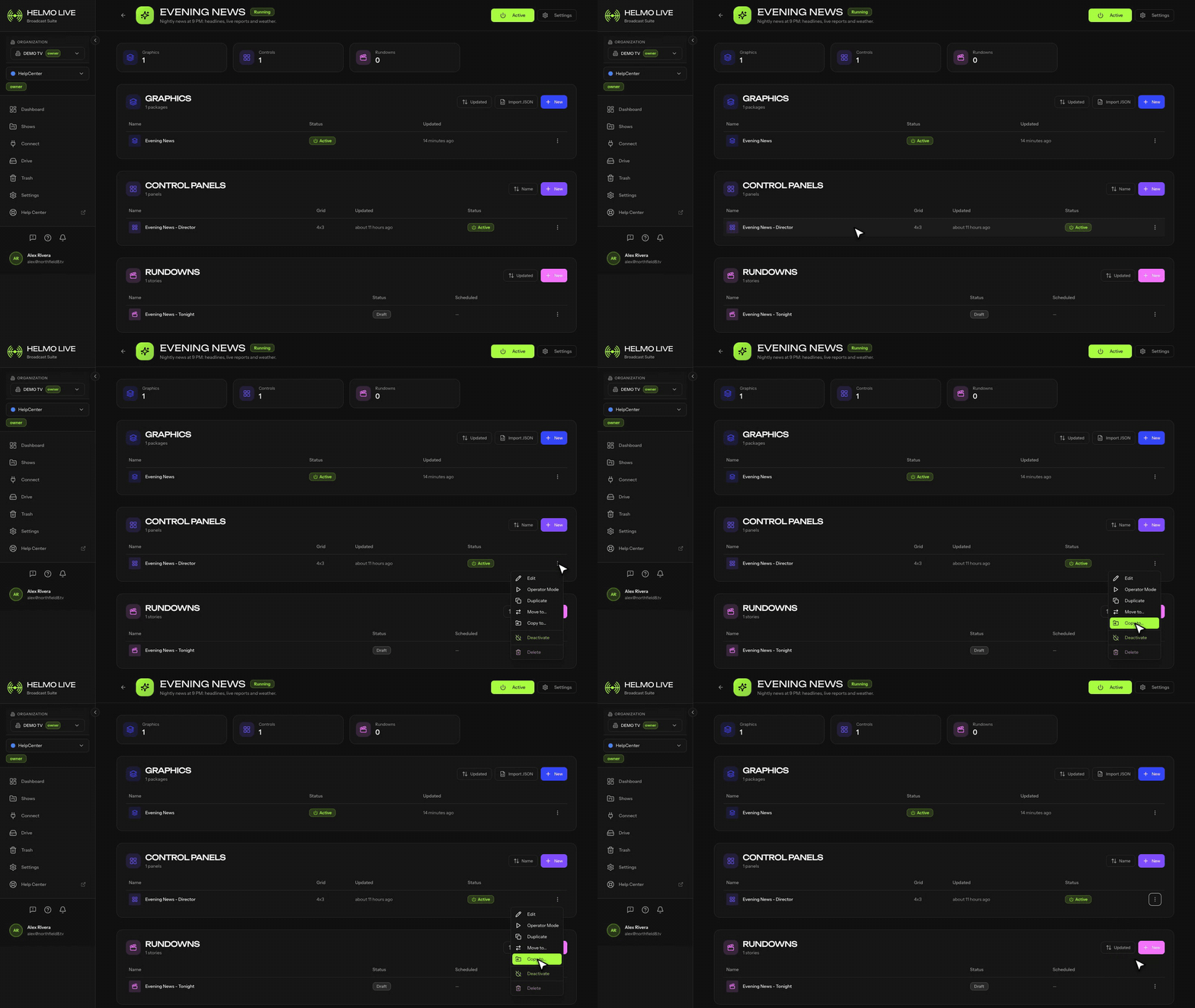
How to copy or move a resource
- Open the Show that contains the resource
- Find the resource card (graphic, panel or story)
- Click the ⋮ menu (three dots) on the resource card
- Select Copy to... or Move to...
- Choose the destination show from the list
- Confirm the action
Copy vs. Move
| Action | What happens | Original resource |
|---|---|---|
| Copy to | Creates a duplicate in the destination show | Stays in the original show (unchanged) |
| Move to | Transfers the resource to the destination show | Removed from the original show |
Which resources support this?
These product types can be copied and moved:
- Graphics packages
- Control panels
- Rundown stories
Destination filtering
The modal only shows shows that your team has access to. Workspace owners and admins see all shows.
Tip
Use Copy to when you want to reuse a control panel layout or graphics package across multiple shows without rebuilding from scratch.
Note
Copying a resource duplicates its configuration and content. Any integrations linked to the resource are preserved, but execution logs are not copied.