Creating and managing teams
Organize workspace members into teams, add members with team-level roles, and manage or delete teams.
TutorialIntermediateUpdated
Teams let you organize members within your workspace into groups, for example a "Graphics" team, a "Live Operations" team, or a "Sports" team.
Creating a Team
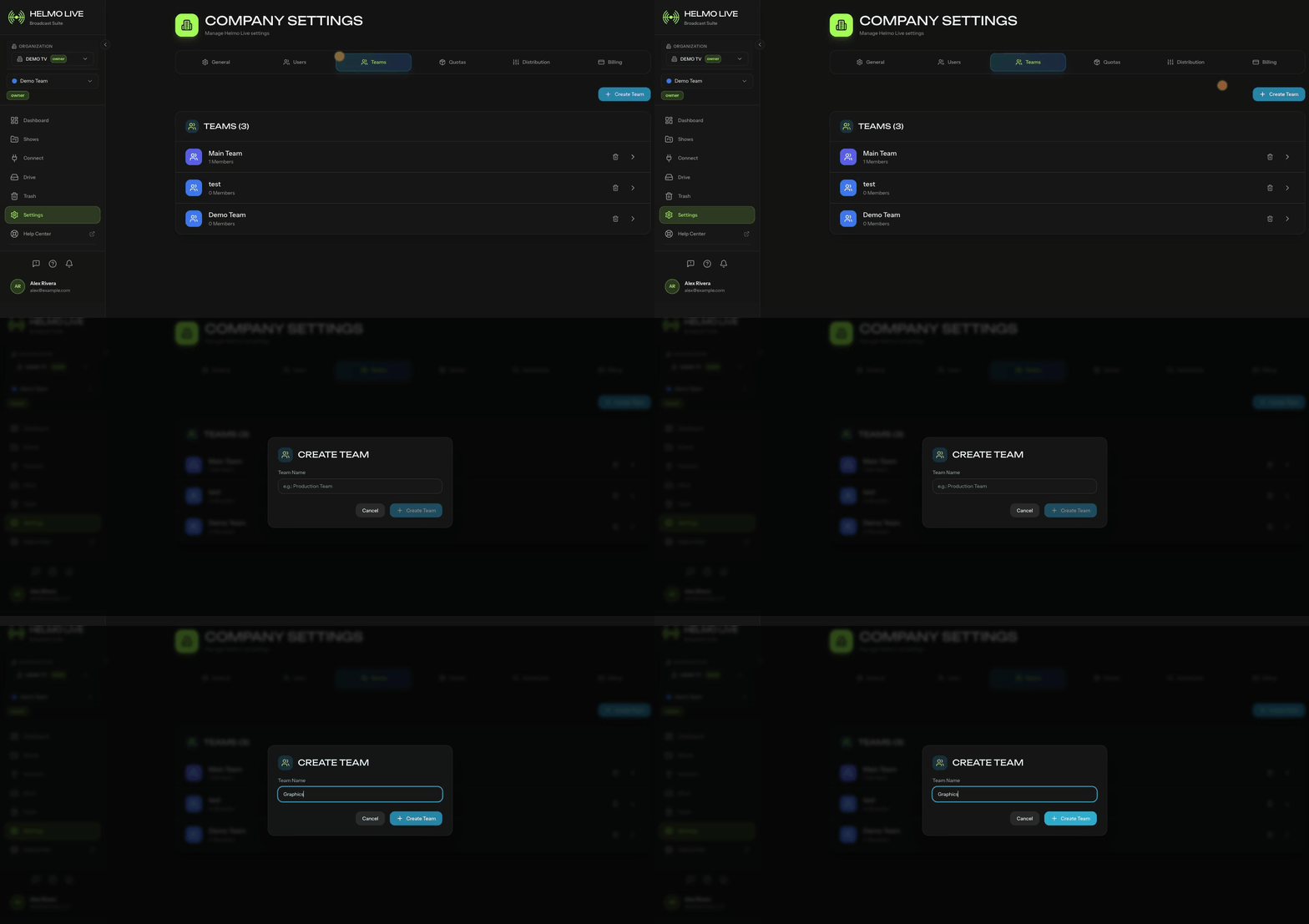
| Step | Action | Details |
|---|---|---|
| 1 | Go to Settings | Open Settings > Teams from the sidebar |
| 2 | Click Create Team | Opens the team creation form |
| 3 | Name your team | Give it a descriptive name and optionally pick a color |
| 4 | Save | The team appears in your Teams list |
Adding Members
- Open the team from the Teams list
- Click Add Member
- Select a workspace member from the dropdown
- Choose their role within the team
- Click Add
Why use Teams?
| Benefit | How it works |
|---|---|
| Separate productions | Each team manages its own Shows independently |
| Resource isolation | Quotas can be distributed per team (see Quota distribution: Shared vs. By Team) |
| Access control | Members only see their team's content |
| Team-level roles | Members can have different roles per team |
Managing Teams
From the team settings page you can rename the team, change its color, or delete it.
Watch out
Deleting a team does not delete the members' accounts. They remain in the workspace but lose access to the team's Shows and resources.