Quota distribution: Shared vs. By Team
Choose between Shared and Distributed (By Team) quota modes, when to use each, and how to configure them.
ConceptIntermediateownerUpdated
When your workspace has multiple teams, you can choose how quotas are distributed among them. Helmo offers two distribution modes, each suited to different organizational needs.
Distribution Modes Comparison
| Shared (Free for All) | Distributed (By Team) | |
|---|---|---|
| How it works | All teams share one common pool of resources | Each team gets its own independent quota allocation |
| Quota tracking | Company-wide: any team can use any available quota | Per-team: each team has separate limits |
| Resource conflicts | Possible: one team could use most resources | Prevented: each team is capped individually |
| Best for | Small teams, single workflows, close collaboration | Multiple independent teams, accountability per team |
| Complexity | Simple: no per-team management needed | More setup: requires allocating quotas to each team |
When to Use Shared
Shared mode works best when your teams collaborate closely and don't compete for resources.
| Scenario | Why Shared Works |
|---|---|
| Small workspace with 1-2 teams | No risk of resource contention |
| Single production workflow | All teams contribute to the same Shows |
| Flexible resource needs | Teams can scale up/down as needed |
When to Use Distributed
Distributed mode is ideal when you need clear boundaries between teams.
| Scenario | Why Distributed Works |
|---|---|
| Multiple independent productions | Each team manages their own Shows |
| Need accountability per team | Track who's using what resources |
| Prevent one team from consuming all quotas | Hard limits per team ensure fairness |
How to Configure Distribution
| Step | Action |
|---|---|
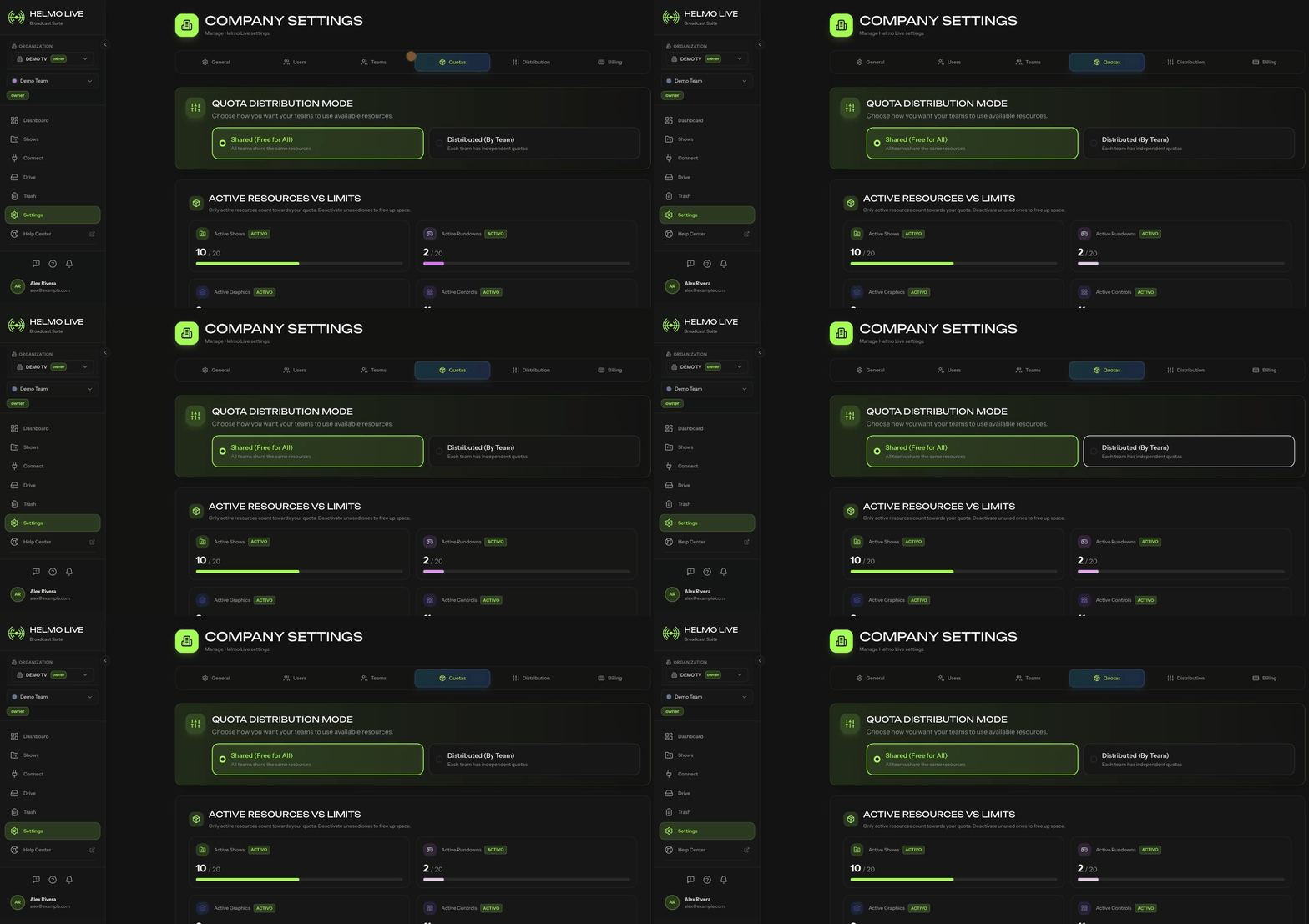
| 1 | Go to Settings > Quotas |
| 2 | At the top, select Shared (Free for All) or Distributed (By Team) |
| 3 | If you choose Distributed, assign quota allocations for each team |
Watch out
Owner-only setting. Quota distribution is managed by workspace Owners. If you don't see this option, contact your workspace administrator.
Tip
You can switch between modes at any time. Switching to Distributed won't deactivate existing resources. It just starts enforcing per-team limits going forward.