Understanding quotas and limits
How active-resource quotas and fixed limits work, how to check your usage and what to do when you hit a limit.
Quotas define how many resources you can create and use within Helmo Live. They are determined by your subscription plan and help ensure fair resource allocation across your workspace.
Active Resources vs. Fixed Limits
Helmo has two types of limits. Understanding the difference helps you make the most of your plan.
| Type | How It Works | Examples |
|---|---|---|
| Active quotas | Only active resources count. Deactivate what you're not using to free up space. Nothing gets deleted. | Shows, Rundowns, Controls, Integrations |
| Fixed limits | These count all resources regardless of status. They cannot be freed by deactivating. | Users, Teams |
Quota Categories
Here's every resource category tracked by quotas and what each one means.
| Category | What It Tracks | Active/Fixed |
|---|---|---|
| Active Shows | How many Shows can be active simultaneously | Active |
| Active Rundowns | How many Rundowns can be active | Active |
| Active Panels | How many control panels can be active | Active |
| Active Integrations | How many integrations (OBS, vMix, Viz Flowics, etc.) can be active | Active |
| Storage | Total file storage for Drive assets | Fixed |
| Users | Maximum number of members in your workspace | Fixed |
| Teams | Maximum number of teams you can create | Fixed |
How to Check Your Quotas
| Step | Action |
|---|---|
| 1 | Go to Settings > Quotas |
| 2 | View the dashboard with visual progress bars for each category |
| 3 | Each bar shows current usage vs. plan limit |
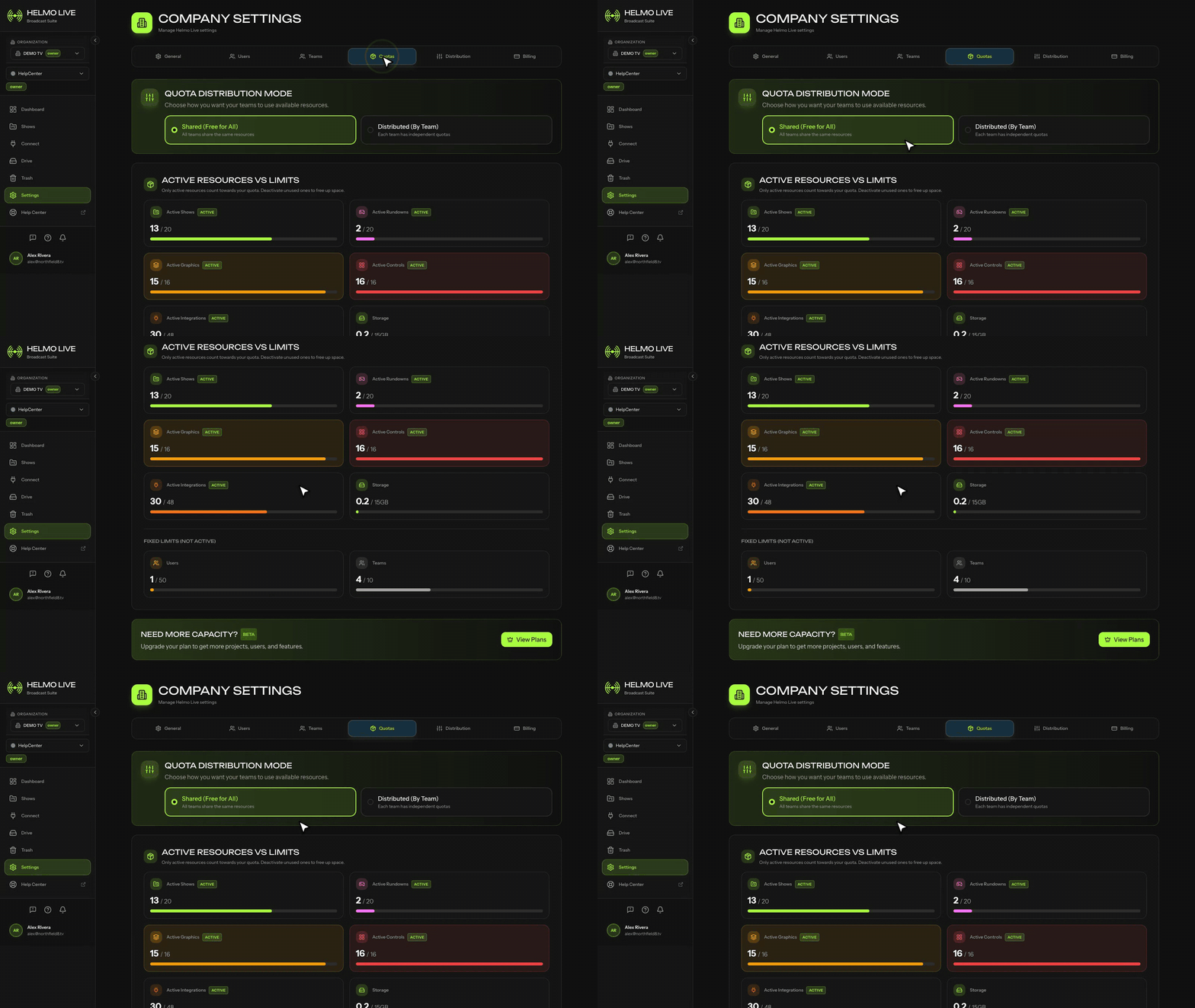
Approaching a quota limit? Deactivate Shows or resources you're not currently using. Only active resources count toward your limit. Deactivating frees up space without losing any data.
What Happens When You Hit a Limit?
When you reach a quota limit, Helmo will prevent you from creating or activating new resources of that type. You have two options: deactivate existing resources to free up space, or upgrade your plan for higher limits.
Need more capacity? Upgrade your plan from Settings > General > View Plans, or contact support@helmolive.com.