Inviting team members
Invite new members to your workspace by email, choose their role and track invitation status.
TutorialBeginnerowner, editorUpdated
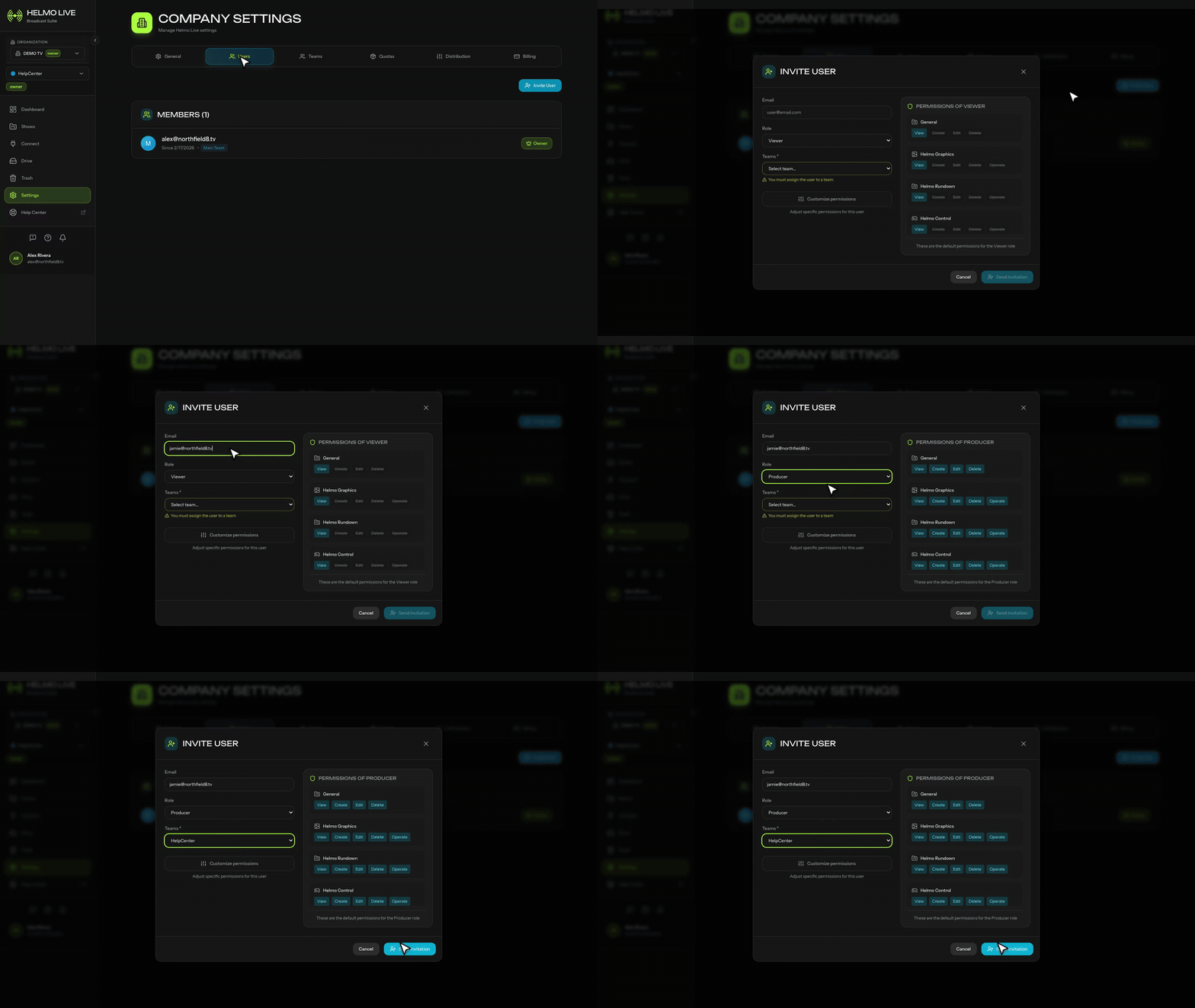
You can invite new members to your workspace via email. Only Owners and Editors can send invitations.
How to invite
| Step | Action | Details |
|---|---|---|
| 1 | Go to Settings | Open Settings > Users |
| 2 | Click Invite Member | Opens the invitation form |
| 3 | Enter email | Type the person's email address |
| 4 | Select a role | Viewer, Operator, Producer, Editor, or Owner |
| 5 | Send invitation | They'll receive an email with a join link |
Invitation status
| Status | Meaning | Action available |
|---|---|---|
| Pending | Invitation sent, not yet accepted | Resend or Cancel |
| Accepted | The person has joined your workspace | Manage role, assign to team |
| Expired | The invitation time limit passed | Send a new invitation |
Tip
After someone accepts, assign them to a Team so they can see the relevant Shows. Go to Settings > Teams and add them.