Pressing buttons and ON AIR state
How buttons behave during a live broadcast: visual feedback, ON AIR state changes, text fields and the Client bottom panel.
How buttons behave during a live broadcast: visual feedback, state changes, and operator controls.
Pressing buttons
Tap or click a button in Client to trigger its action. The response is immediate. Each button fires the action configured in Builder (IN, OUT, TOGGLE, PATCH, Action Sequence, etc.).
ON AIR state
When a Subcomposition is currently visible (IN), its button glows with an ON AIR indicator. This gives operators clear visual feedback about what's currently on screen.
- Idle: default state. Button is ready to press.
- Active (ON AIR): the overlay is currently visible. Button changes color/glow.
- Back to Idle: after pressing OUT or a second TOGGLE press, the button returns to its default state.
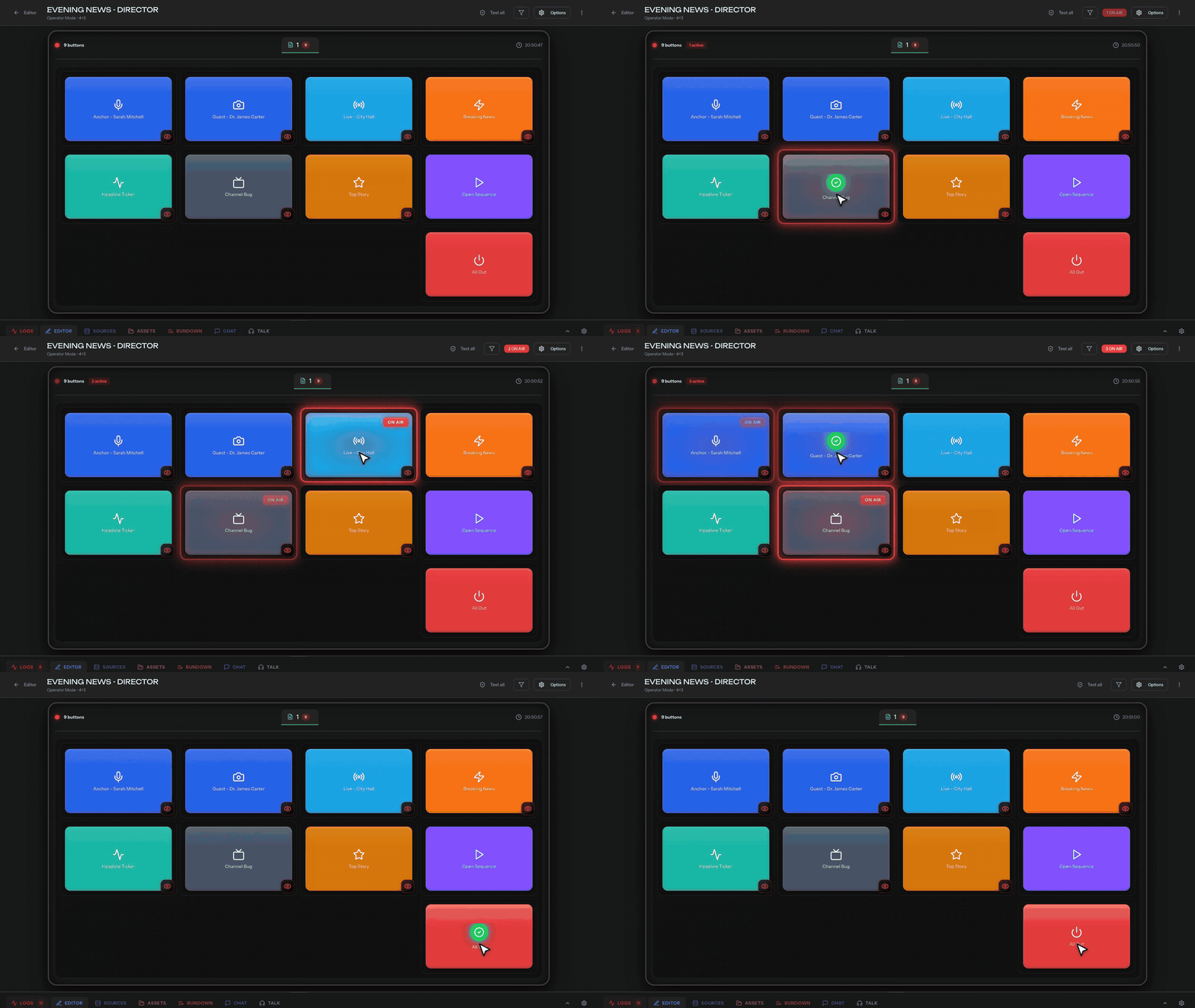
What happens if you press IN twice?
If you press an IN button while the overlay is already on screen, the command is sent again. Depending on your graphic design, this may re-trigger the IN animation or have no visible effect. Use TOGGLE instead if you want press-once-IN, press-again-OUT behavior.
Text fields
Some buttons have text input fields next to them (for PATCH actions). The operator types new values and presses the button to apply. The text values persist, so you don't need to retype them each time.
Panel navigation
Switch between control Panels using the tabs at the top of Client.
Bottom panel tabs
The Client has additional tabs at the bottom:
- Rundown: see and execute the active Story's Elements
- Logs: real-time log of every action fired in this session
- Editor: quick config edits without leaving Client
- Assets: quick media access from Drive
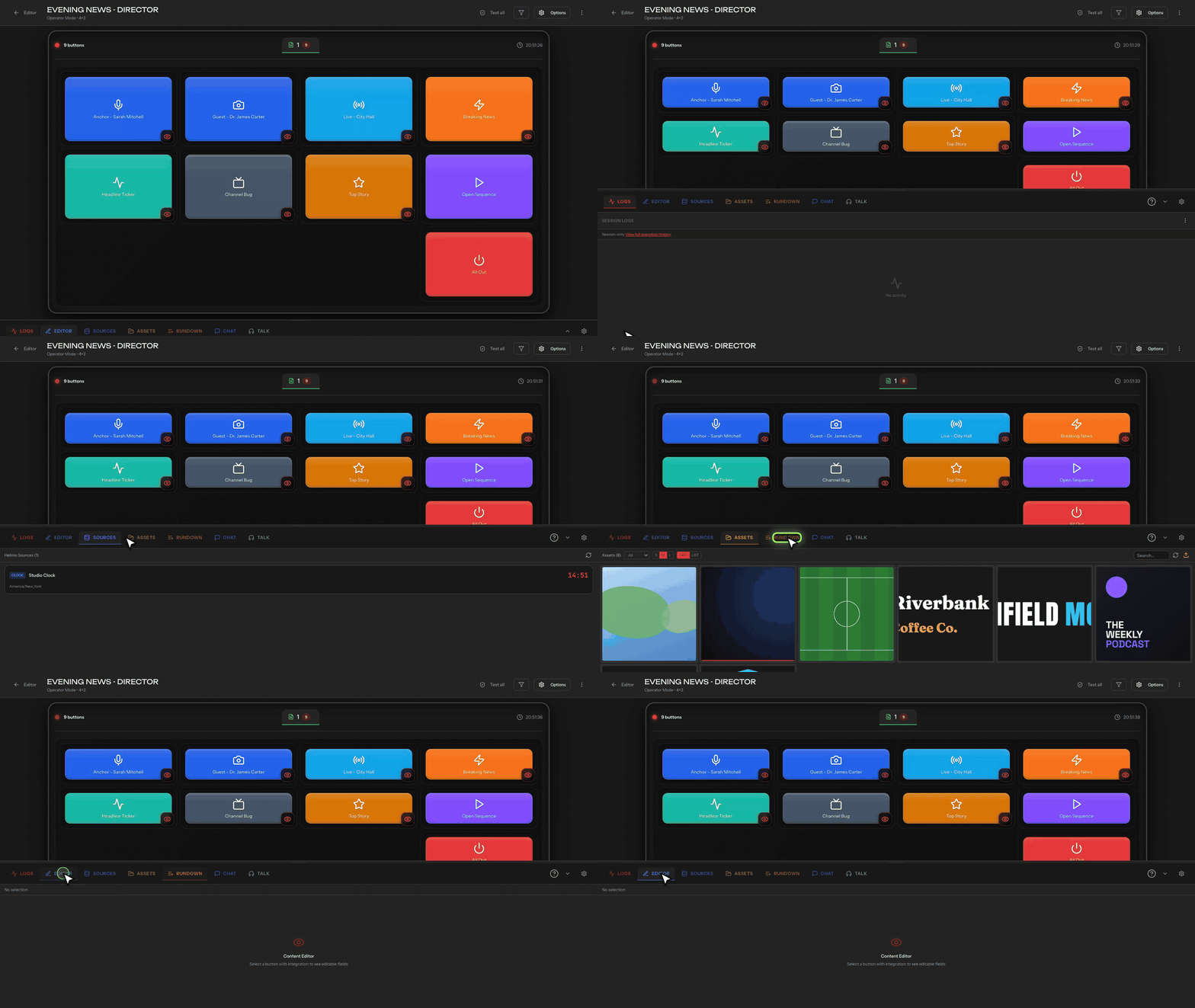
Use "Hide panel" mode (Options dropdown) to give the button grid maximum screen space during high-pressure broadcasts.