Setting up a PATCH action (update text)
Change text and properties on a live overlay without taking it off screen, using a PATCH action on a button.
TutorialIntermediateeditorUpdated
PATCH actions let you update text and properties on a live overlay without taking it off screen.
When to use PATCH
- Change a name on a lower third while it's visible
- Update a score without hiding the scoreboard
- Swap a logo or image source live
- Update ticker text on a running crawler
Setup
- Select a button in Builder (or create a new one)
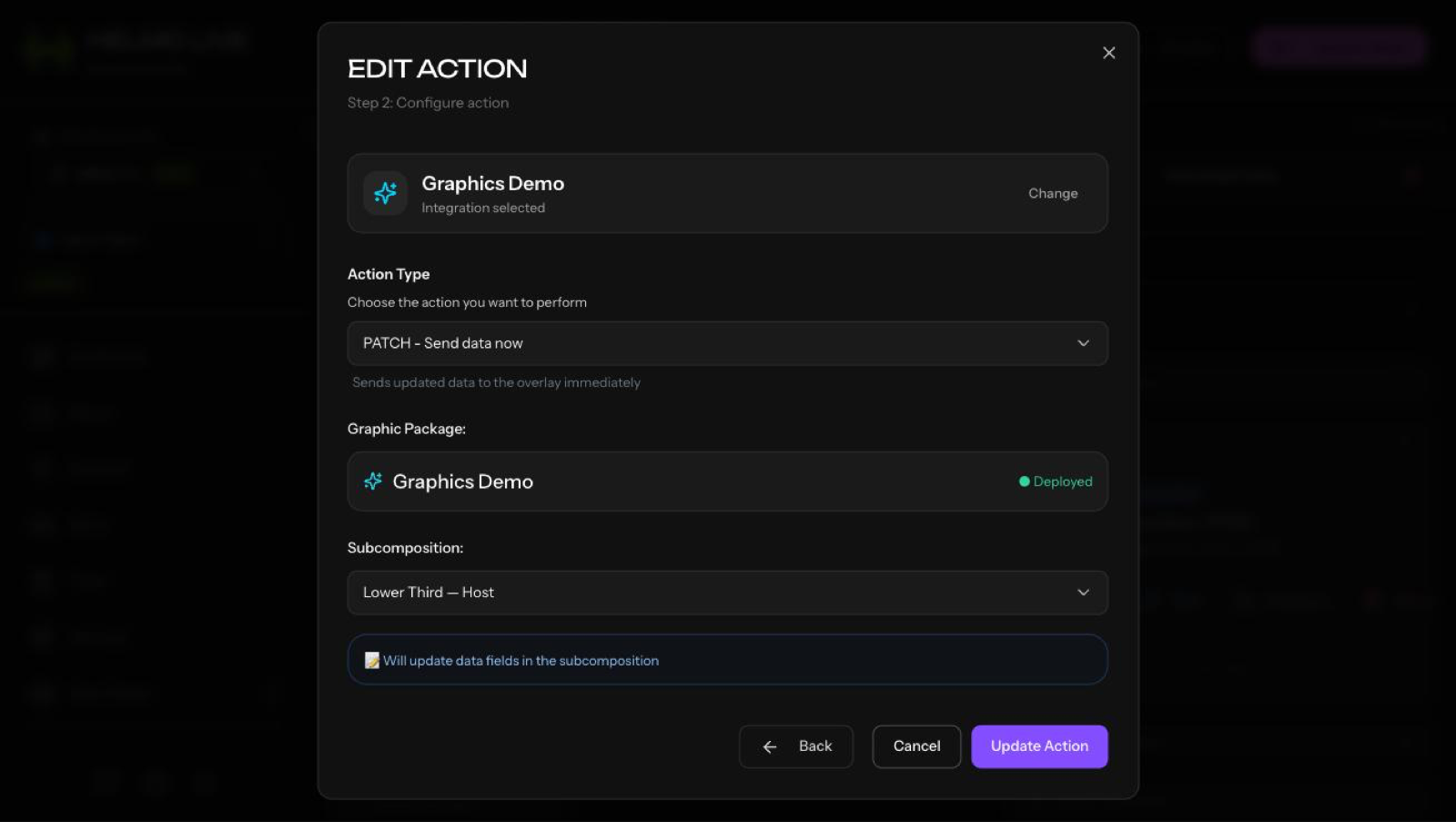
- Set the action type to PATCH
- Choose the integration and Subcomposition
- In the field updates section, map which element properties to change
- Set the new values, or leave as input fields for the operator to fill in at runtime
Using PATCH in Client
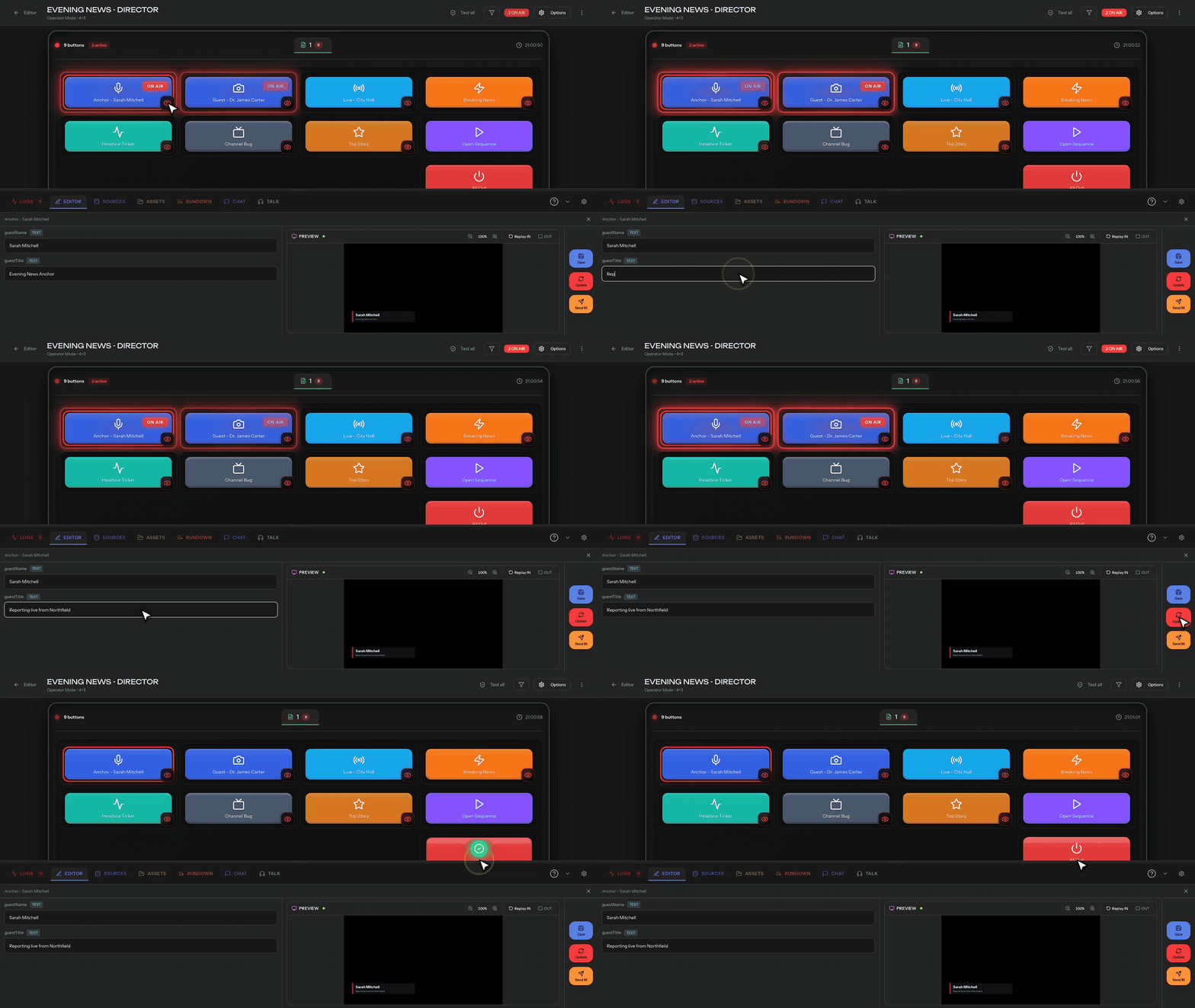
When a button has a PATCH action with input fields, the operator sees text fields next to the button. They type the new value and press the button to apply the change instantly. The overlay updates on screen without any IN/OUT animation.
Common use cases
- Lower third: PATCH the name and title fields before triggering IN, or update them while the graphic is on screen
- Scoreboard: PATCH team scores without hiding the bug, so the numbers update live
- Ticker: PATCH the text content of a crawler element
Tip
Combine PATCH with Action Sequences for powerful workflows. For example: PATCH the new name, IN the lower third, WAIT 8 seconds, OUT, all from one button press.