Previewing graphics in the Editor tab
Preview staged Helmo Graphics in the Client Editor tab, isolated from the live Output, before taking them to air.
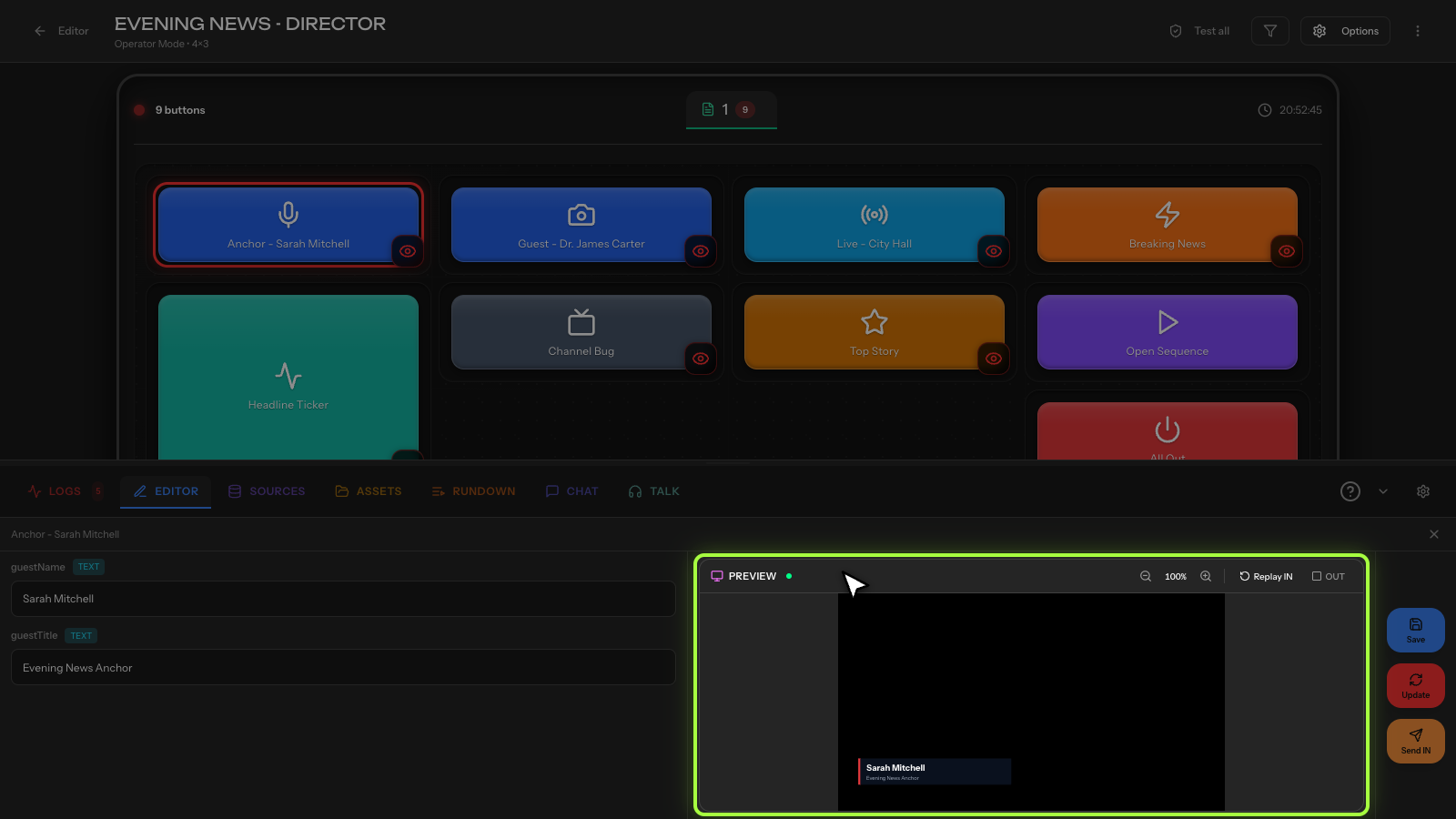
The Editor tab in the Control Client includes an embedded PREVIEW panel, powered by Helmo Graphics. It lets you see exactly how a staged graphic looks before you send it to air, fully isolated from whatever is currently on the live Output.
The PREVIEW panel
Open the Editor tab in the Control Client and you'll find the PREVIEW panel on the right. It renders the staged piece (the graphic and field values you're currently editing) at a full 1920×1080 canvas.
The preview is completely isolated from the live Output. Nothing you do in the preview (staging fields, replaying animations, changing zoom) touches the program feed. This gives you a safe rehearsal space to check spelling, timing, and layout before taking anything live.
Zoom controls
Use the + / − buttons to zoom the preview between 25% and 400%. Zoom in to check pixel-level detail on a lower third, or zoom out to see a full-screen graphic in context. Zoom only affects your view; it never changes what renders on air.
Replay IN
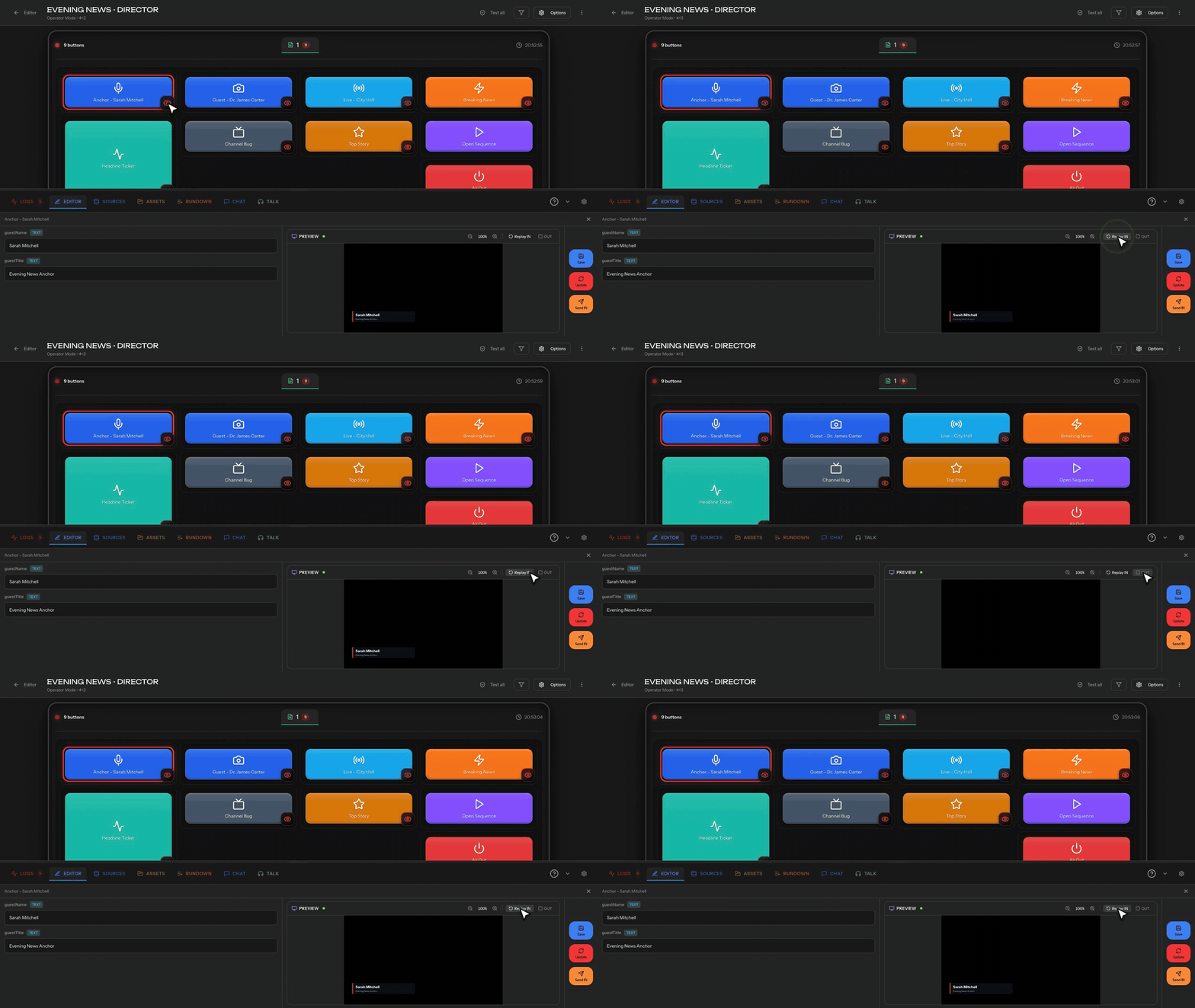
The Replay IN button re-fires the graphic's entrance animation inside the preview without reloading the piece. Use it to review timing and easing as many times as you like while you fine-tune your content. Because the preview is isolated, replaying the IN animation has no effect on the live Output.
Resizable, 16:9 preview
The preview monitor keeps a locked 16:9 aspect ratio and can be resized to fit your workspace. Make it larger for close inspection or smaller to leave more room for the button grid.
Mute the preview monitor
You can mute the preview monitor so its audio doesn't play at your operating position. Muting the preview does not affect the program on air; the live Output audio continues normally.
Action buttons
Below the preview are labeled action buttons, each with an icon and a tooltip explaining what it does:
| Button | What it does |
|---|---|
| Save | Saves the current staged field values to the piece. |
| Update | Sends a live PATCH: pushes your edited field values to the graphic that is currently on air, without re-animating. |
| Send IN | Performs a TAKE: runs OUT, PATCH, IN in sequence so the on-air graphic cleanly exits, updates to the staged values, and animates back in. |
Hover any button to see its tooltip if you're unsure which action it performs.
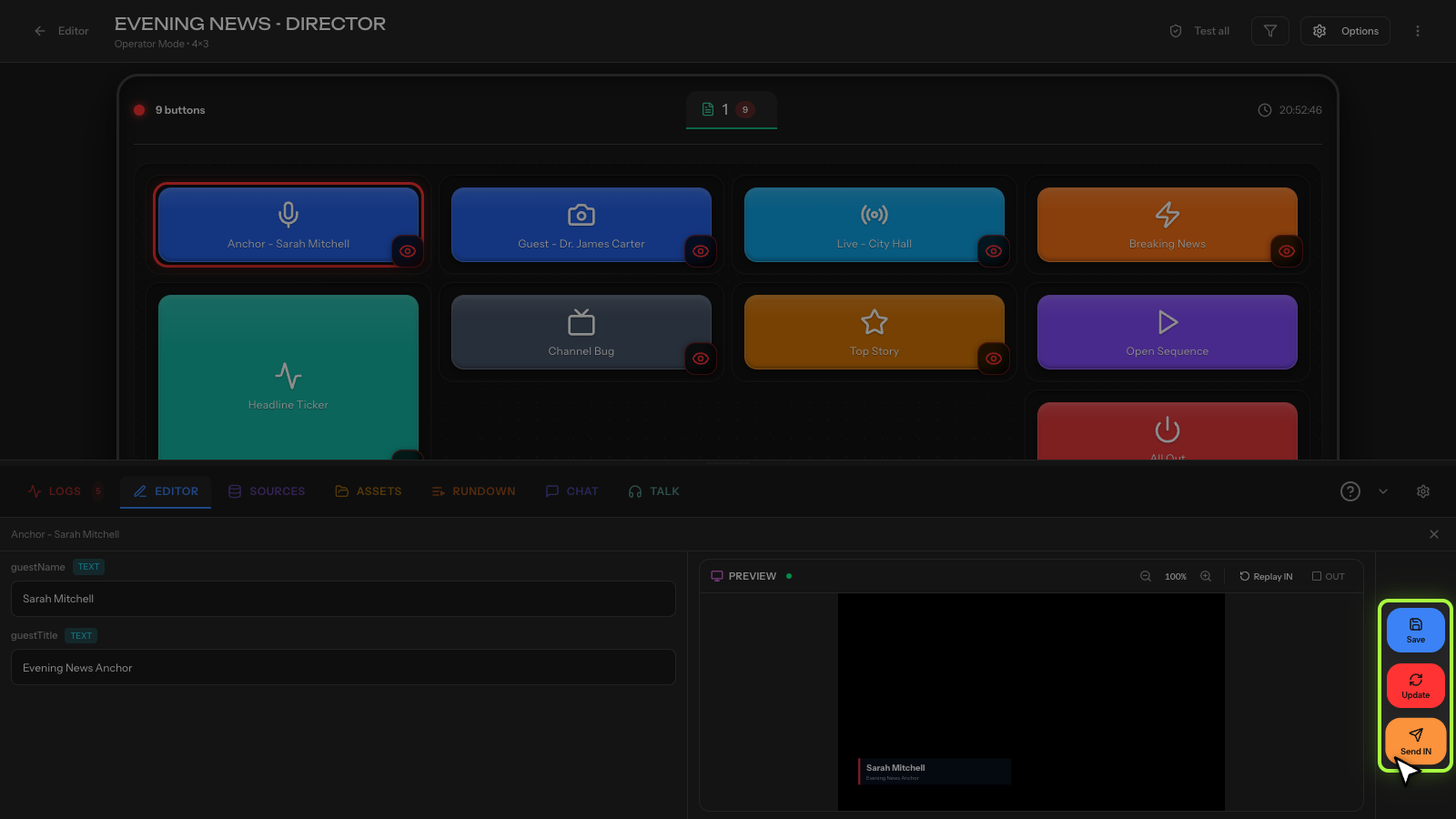
Stage and check your graphic in the PREVIEW panel first, then use Send IN to take it to air. Use Update when the graphic is already live and you only need to change its text.