Adding a GIF
Add looping animated GIF or WebP graphics for reactions, badges and motion accents, and combine them with animations and masks.
GIF elements add looping animated graphics: reactions, badges, or motion accents. Drag GIF from the Elements panel onto the canvas.
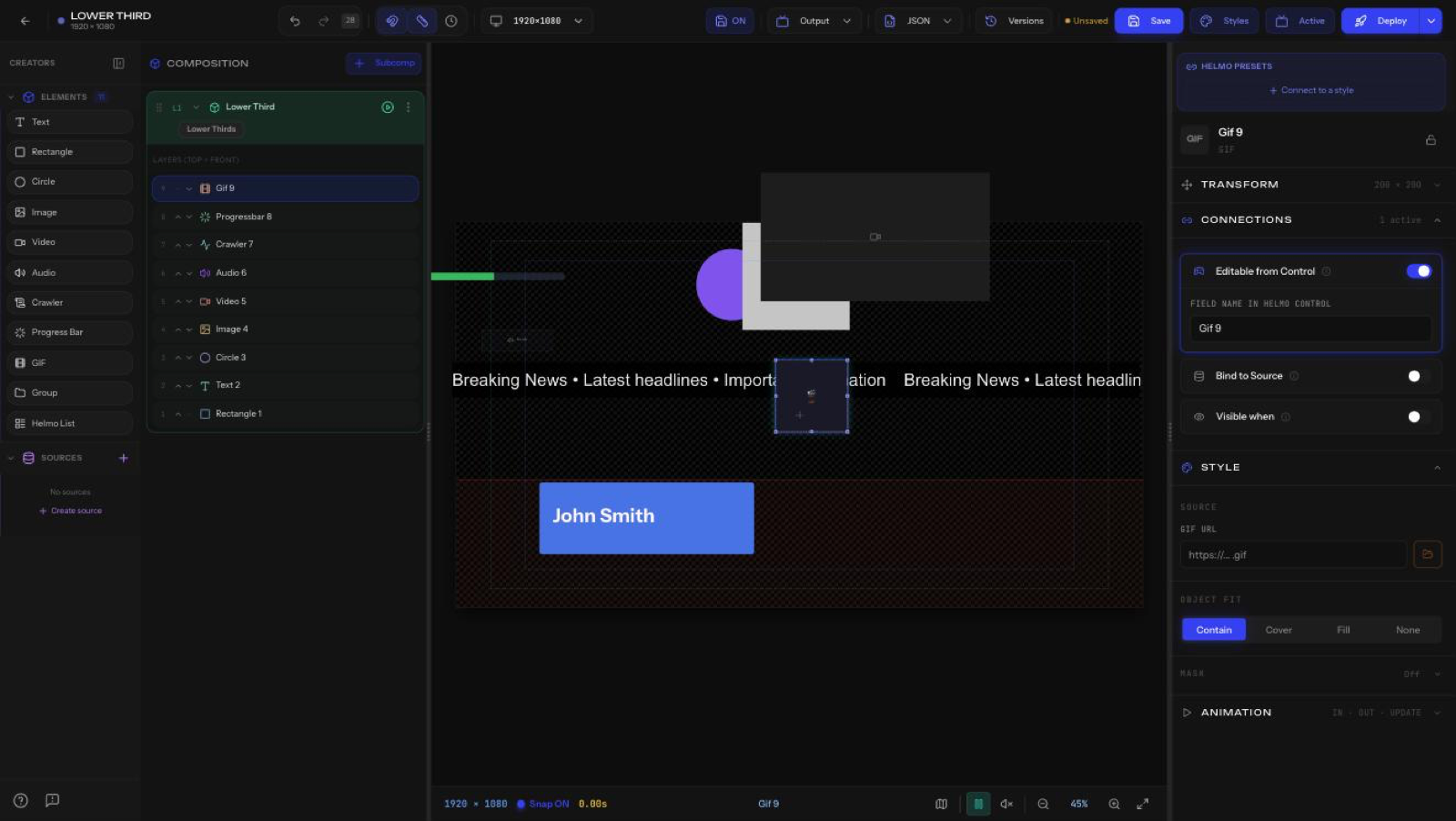
Source
- Gif URL: paste a URL or pick a file from Drive.
Supported formats
Animated GIF and animated WebP. For heavier, high-quality motion (stingers, backgrounds) use a Video element instead: it's lighter on performance than a large GIF.
Object Fit
How the GIF fills its box: Contain, Cover, Fill, or None.
- Contain: whole GIF visible, may leave empty space
- Cover: fills the box, may crop edges
- Fill: stretches to fit exactly
- None: original size, no scaling
Looping
GIFs loop continuously on their own, which makes them perfect for reactions, badges, and small motion accents that need to run for as long as the overlay is on air. The loop is baked into the file, so if you need it to play once, stop, or sync to a cue, use a Video element with playback controls instead.
Sizing tips
- Keep accent GIFs small: a crisp, purpose-built GIF at its intended size looks sharper and performs better than a huge one scaled down.
- Match the GIF's aspect ratio with your box (or use Contain) to avoid distortion.
- Export at roughly the on-canvas size; oversized GIFs cost memory in the live Output for no visual gain.
Combining with animations and masks
A GIF is a normal element, so you can layer editor effects on top of its built-in loop:
- Animation: give the GIF its own IN/OUT preset (fade, slide, zoom) so it enters and exits with the rest of the overlay while its internal loop keeps playing.
- Mask: use a shape or text as a mask to clip the GIF into a circle, badge, or letters (Clip / Knockout / Fill). Great for a looping animated fill inside a headline or a round reaction bubble. See Masks: Clip, Knockout & Fill.
- Transform: rotate, scale, and position like any element.
Plus Connections for live control.
Tips
- Use GIFs with transparency (transparent background) so they sit cleanly over video.
- Upload to Drive first for reliable loading in the live Output.
- For long or full-screen motion, prefer a Video element over a large GIF.