Adding a Text element
Insert and configure text elements for titles, names and labels, including live data binding.
TutorialBeginnerUpdated
Text elements are the most commonly used element in broadcast graphics.
Adding a Text element
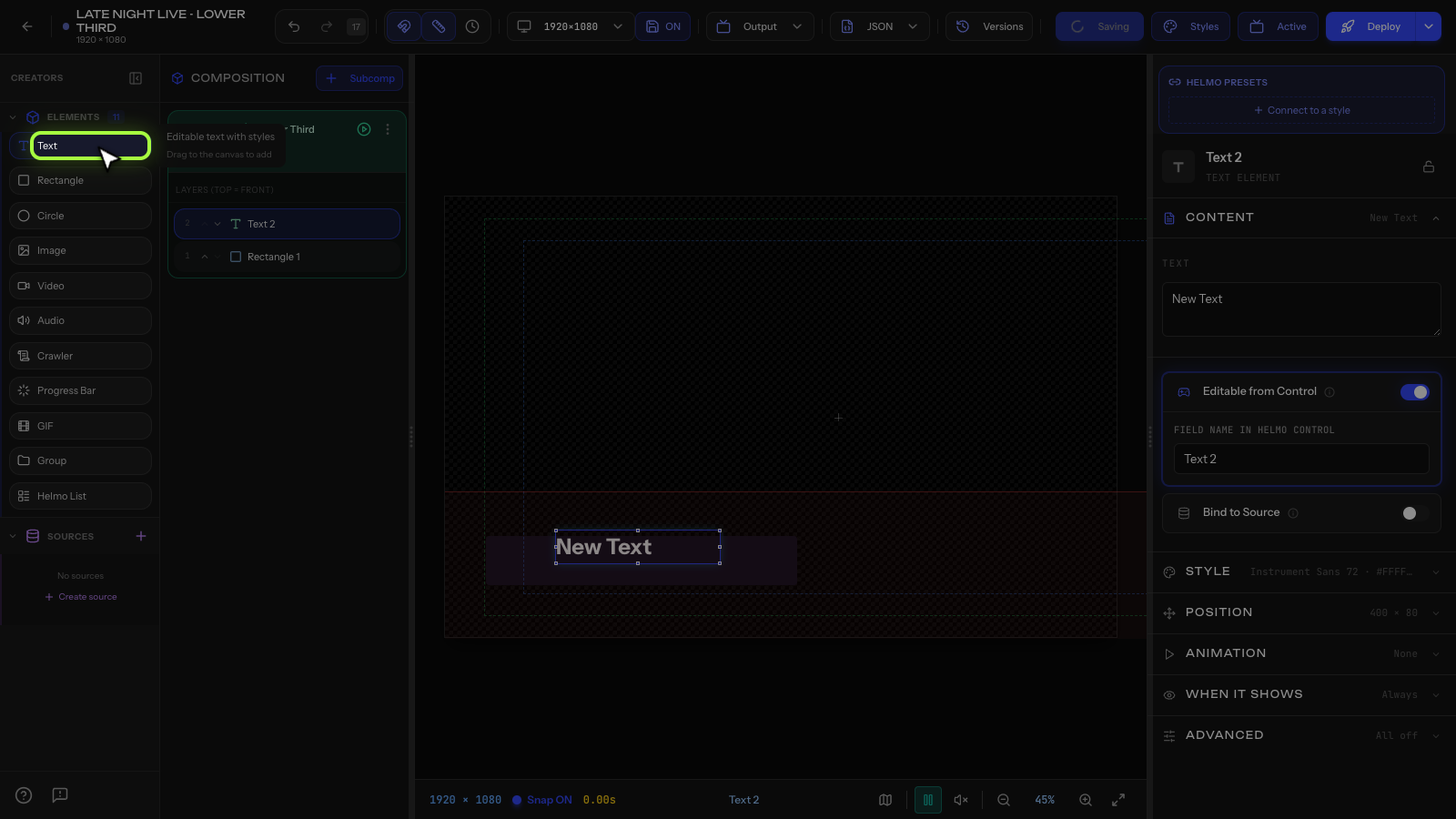
- Open the Elements panel (left side, under Creators).
- Drag Text onto the canvas.
- A text element appears with placeholder text ("New Text").
- Double-click to edit the text directly on canvas, or use the Inspector.
Formatting options
In the Inspector you can set:
- Font family: choose from system fonts or upload custom fonts via Drive
- Font size: in pixels (common sizes: 24-36 for lower thirds, 48-72 for titles)
- Font weight: normal, bold
- Color: pick any color
- Alignment: left, center, right
- Letter spacing: adjust space between characters
- Text shadow: add depth with offset, blur, and color
Dynamic text
Text elements can display live data by binding them to Helmo Sources:
- A clock showing the current time
- A counter that changes on button press
- Data from a Google Sheet or JSON API
See Helmo Sources: bind live data to your graphics for details.
Tips
- Use text shadow for readability over busy backgrounds.
- Keep font sizes large: broadcast text needs to be readable from a distance.
- Use custom fonts from Drive to match your brand.