Deploying your graphic for live use
Deploy to generate the Output URL, understand Deploy versus Deploy + wipe on air, and learn how redeploying works.
Once your graphic is ready, you need to deploy it to make it available for live use.
What does Deploy do?
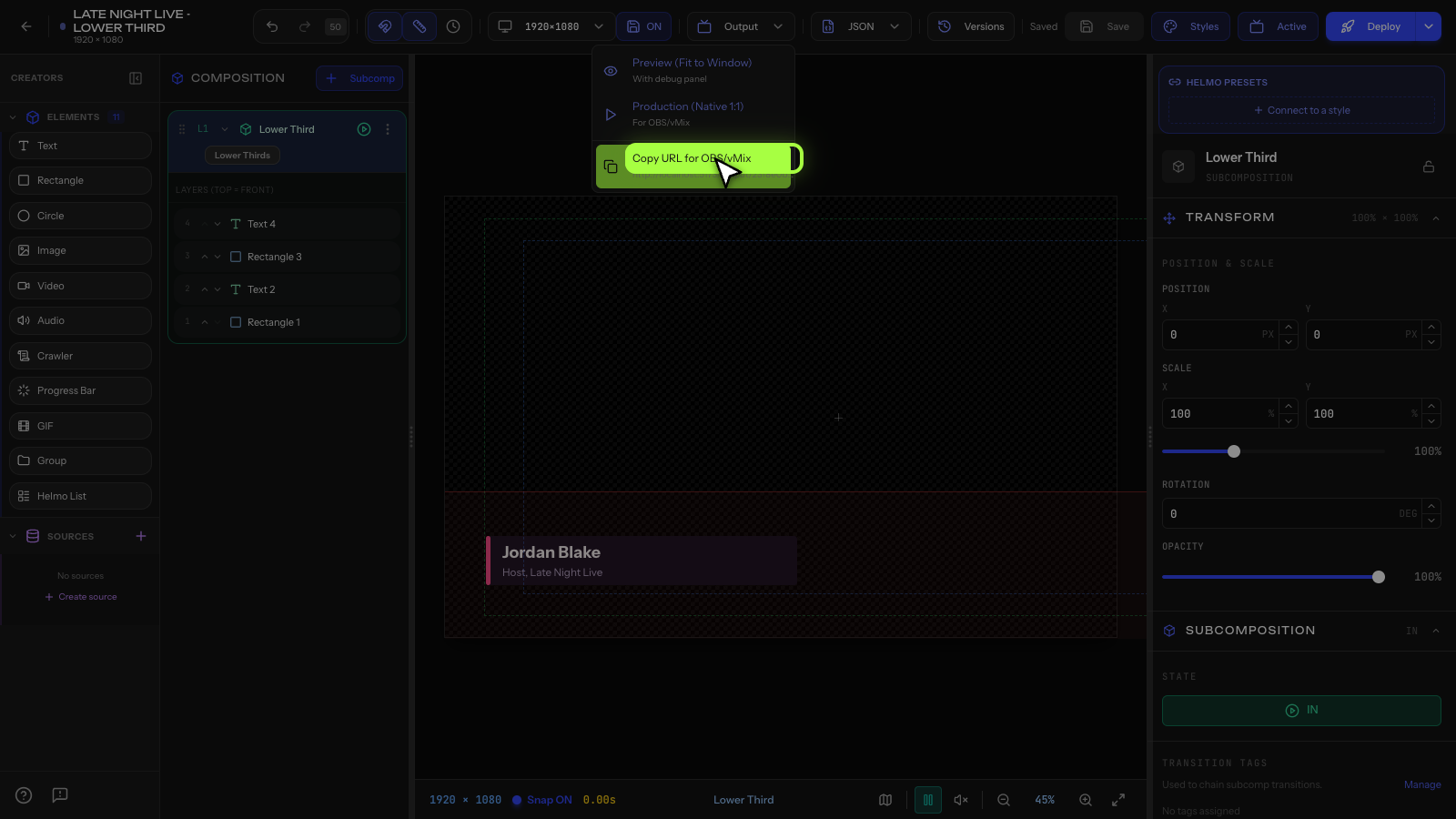
Deploying takes a snapshot of your current graphic and publishes it to a live Output URL. This URL is what you add to OBS or vMix.
How to deploy
- Open your graphic in the editor.
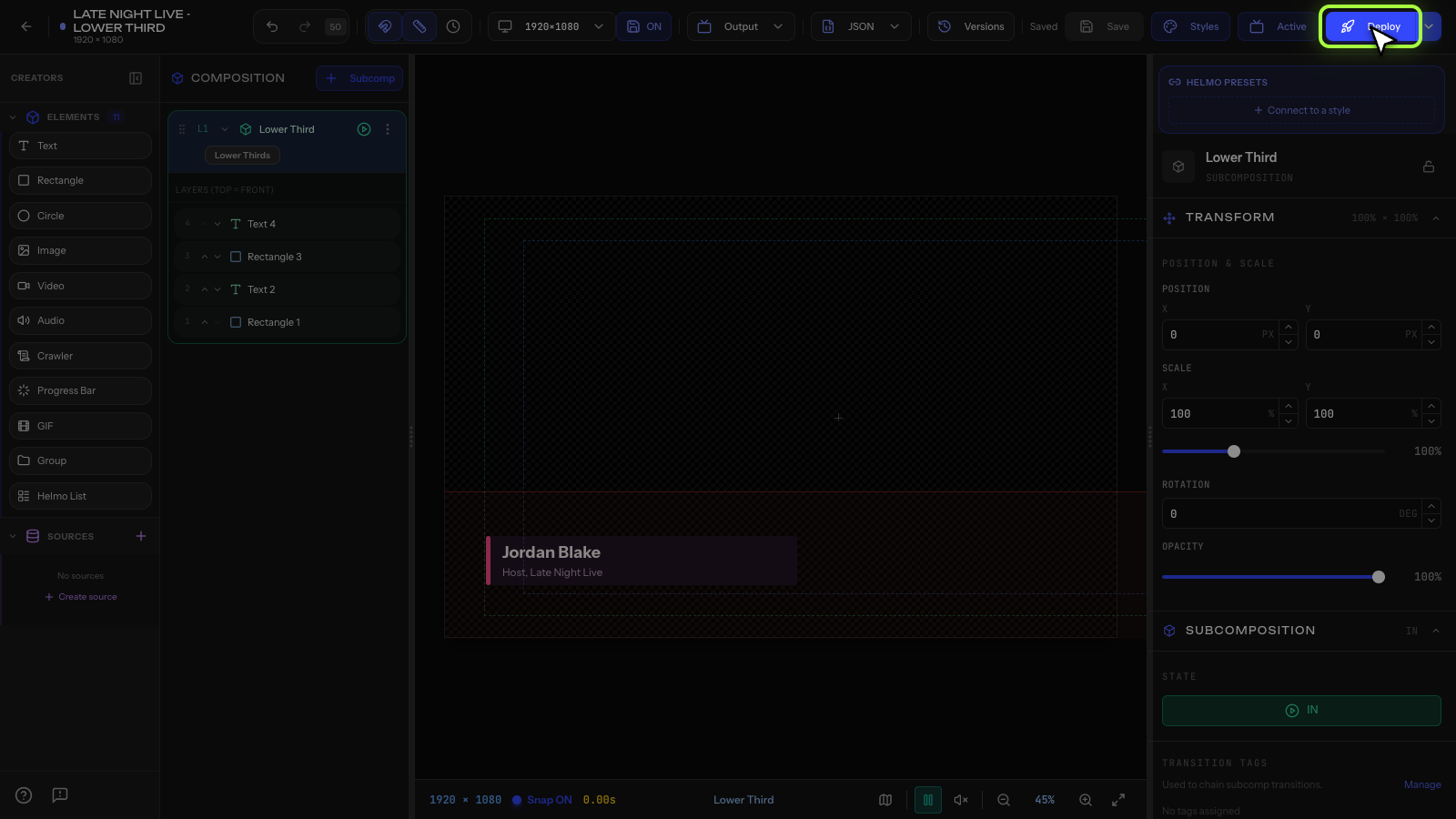
- Click the Deploy button in the top toolbar. You'll see "Changes are ready for live output".
- Open the Output menu and choose Copiar URL para OBS/vMix to copy your Output URL.
Deploy vs Deploy + wipe on air
The Deploy button is a split button with two behaviors:
- Deploy (default): publishes your latest changes while preserving whatever is currently on air. Overlays that are live stay live, so you can push updates mid-show without interrupting the broadcast.
- Deploy + wipe on air: open the split menu and choose this to publish and clear the live output. It wipes any active subcompositions and resets runtime overrides back to the deployed state. Use it for a clean slate between shows or when overrides have drifted from your design.
On air? Stick with plain Deploy during a live show. Only use Deploy + wipe on air when you're comfortable clearing everything currently showing.
The Output URL
After deploying, you'll get a URL like:
https://helmolive.app/output/your-graphic-id
This URL:
- Shows your graphic with a transparent background
- Runs at 60fps
- Responds to IN/OUT/PATCH commands from Helmo Control
- Requires no login: anyone with the URL can view it
- Survives page refresh (persists the last known state)
Re-deploying
If you make changes to your graphic, you need to deploy again to update the output. The output always shows the last deployed version, not your live editor changes.
Auto-created integration
When you deploy for the first time, Helmo Live automatically creates an integration in the Integrations Hub. This lets Helmo Control send commands to your graphic.
Tips
- Always deploy before going live.
- Test your output URL in a browser first to make sure it looks right.
- The output shows a watermark when no subcomposition is active. This is normal.