Adding a Video element
Add stingers, backgrounds and replays with a Video element and its playback controls.
TutorialBeginnerUpdated
Add a video clip to your overlay: stingers, backgrounds, replays, or animated elements. Drag Video from the Elements panel onto the canvas.
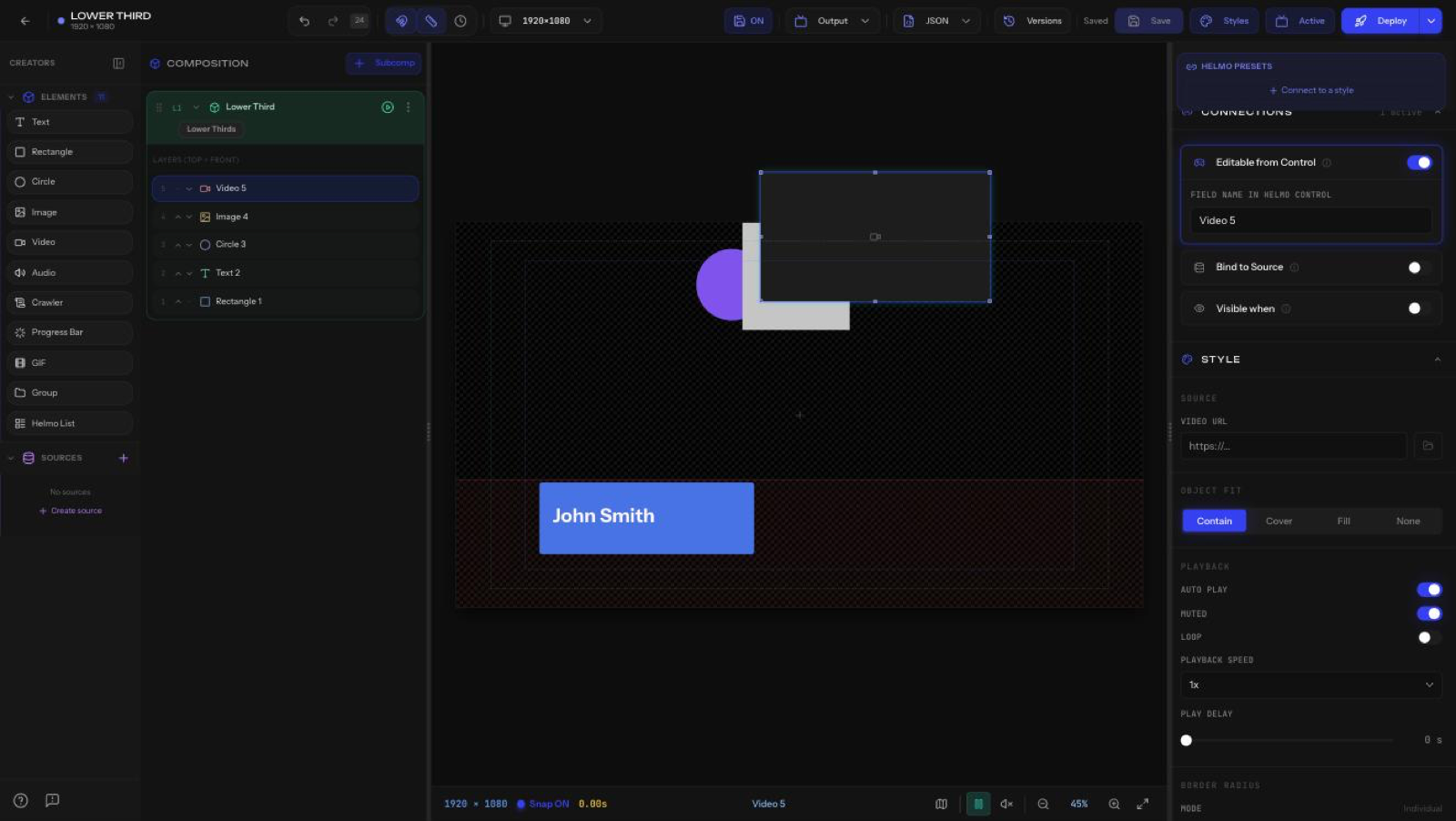
Source
- Video URL: paste a URL or pick a file from Drive using the file button.
Object Fit
How the video fills its box: Contain, Cover, Fill, or None.
Playback
- Auto Play: start automatically (on by default).
- Muted: mute audio (on by default).
- Loop: repeat continuously.
- Playback Speed: for example, 1x.
- Play Delay: wait N seconds before playing.
Plus Border Radius, Connections, Effects, Mask, and Animation.
Tip
For full-screen stingers, set Object Fit to Cover and enable Auto Play so the clip runs as soon as the subcomposition comes IN.