Adding an Audio element
Play stingers, beds and sound effects on your output with an Audio element, with triggers and Helmo Control.
TutorialIntermediateUpdated
Audio elements play sound on your output (stingers, beds, or sound effects) with no visible graphic required. Drag Audio from the Elements panel onto the canvas.
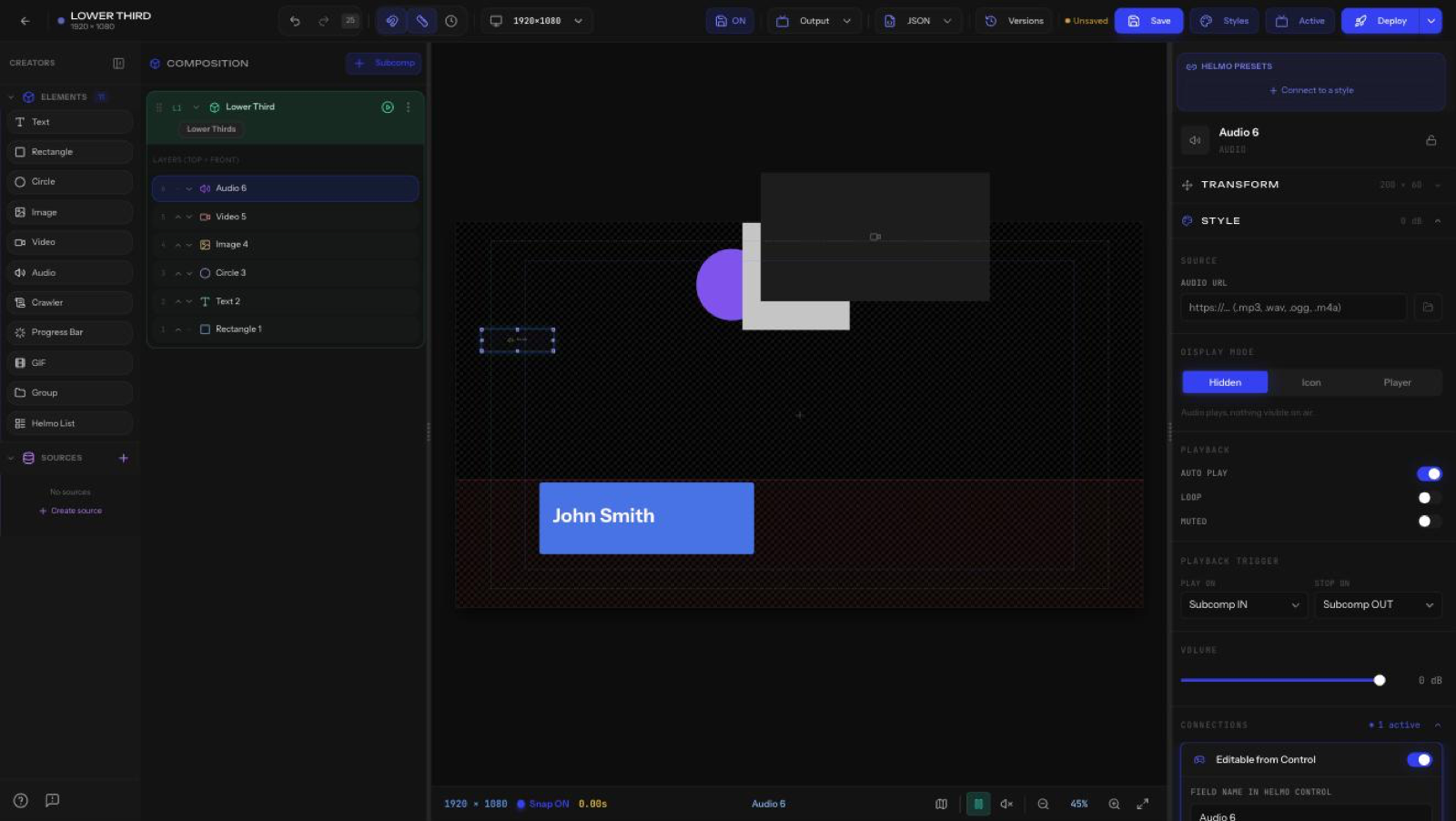
Source
- Audio URL: supports
.mp3,.wav,.ogg,.m4a(URL or Drive file).
Display mode
- Hidden: audio plays, nothing visible on air (default).
- Icon: show a small speaker icon.
- Player: show a visible player.
Playback and trigger
- Auto Play, Loop, Muted toggles.
- Playback Trigger: Play on (for example, Subcomp IN) and Stop on (for example, Subcomp OUT).
- Volume: in dB.
Connections: Editable from Control
Turn on Editable from Control so an operator can swap the audio live from Helmo Control. Set the Field name in Helmo Control so it's easy to find.