Adding shapes: Rectangle & Circle
Use Rectangle and Circle elements for backgrounds, bars and badges, with solid or gradient fill and corner radius.
TutorialBeginnerUpdated
Shapes are the building blocks for backgrounds, bars, and accents. Drag a Rectangle or Circle from the Elements panel onto the canvas.
Rectangle
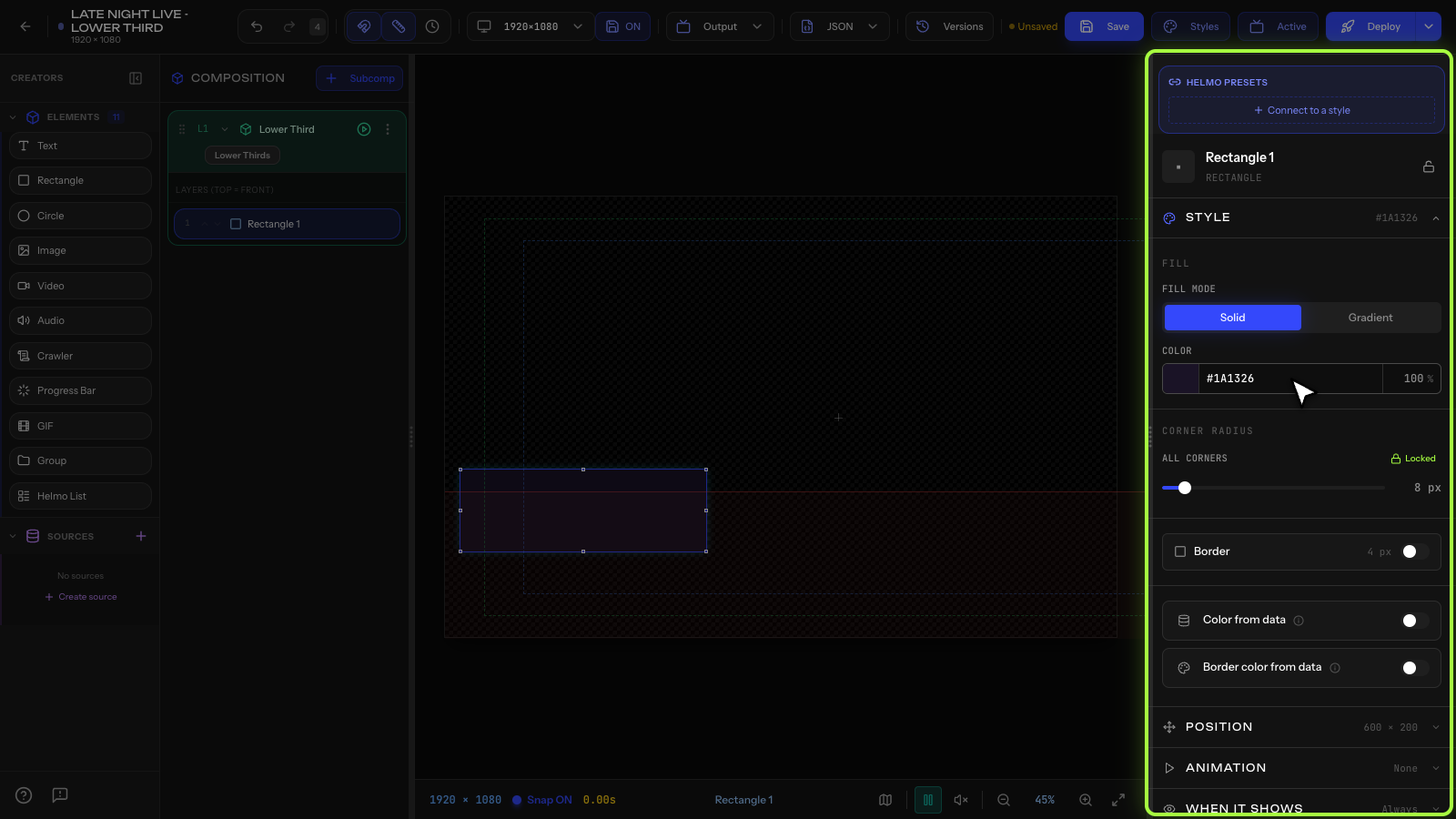
Use rectangles for lower-third bars, panels, and backgrounds.
Inspector properties:
- Fill: Solid or Gradient, with a color picker and opacity.
- Border Radius: round the corners (uniform or Individual per-corner).
- Plus Transform, Connections, Effects, Mask, and Animation.
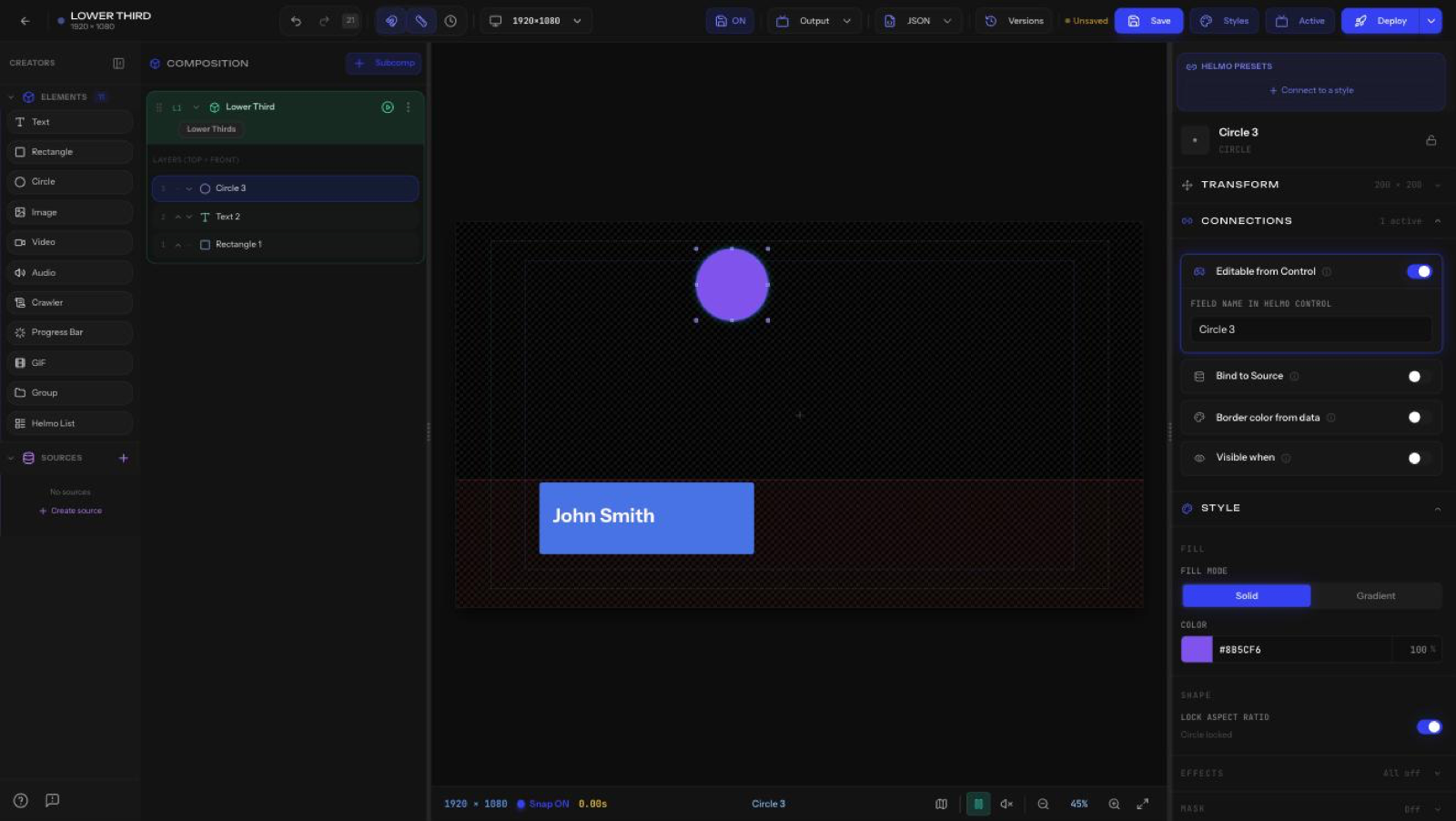
Circle
Use circles for avatars, dots, badges, and bug backgrounds.
Inspector properties:
- Fill: Solid or Gradient plus color.
- Shape > Lock Aspect Ratio: on by default to keep it a perfect circle; turn off to make an ellipse.
- Plus Transform, Connections, Effects, Mask, and Animation.