Creating and naming subcompositions
Add new overlays, name them clearly, organize them by logic layer, and rename or delete them.
TutorialBeginnerUpdated
Subcompositions are the overlays you bring in and out on air. Here is how to create, name, rename and delete them.
Creating a subcomposition
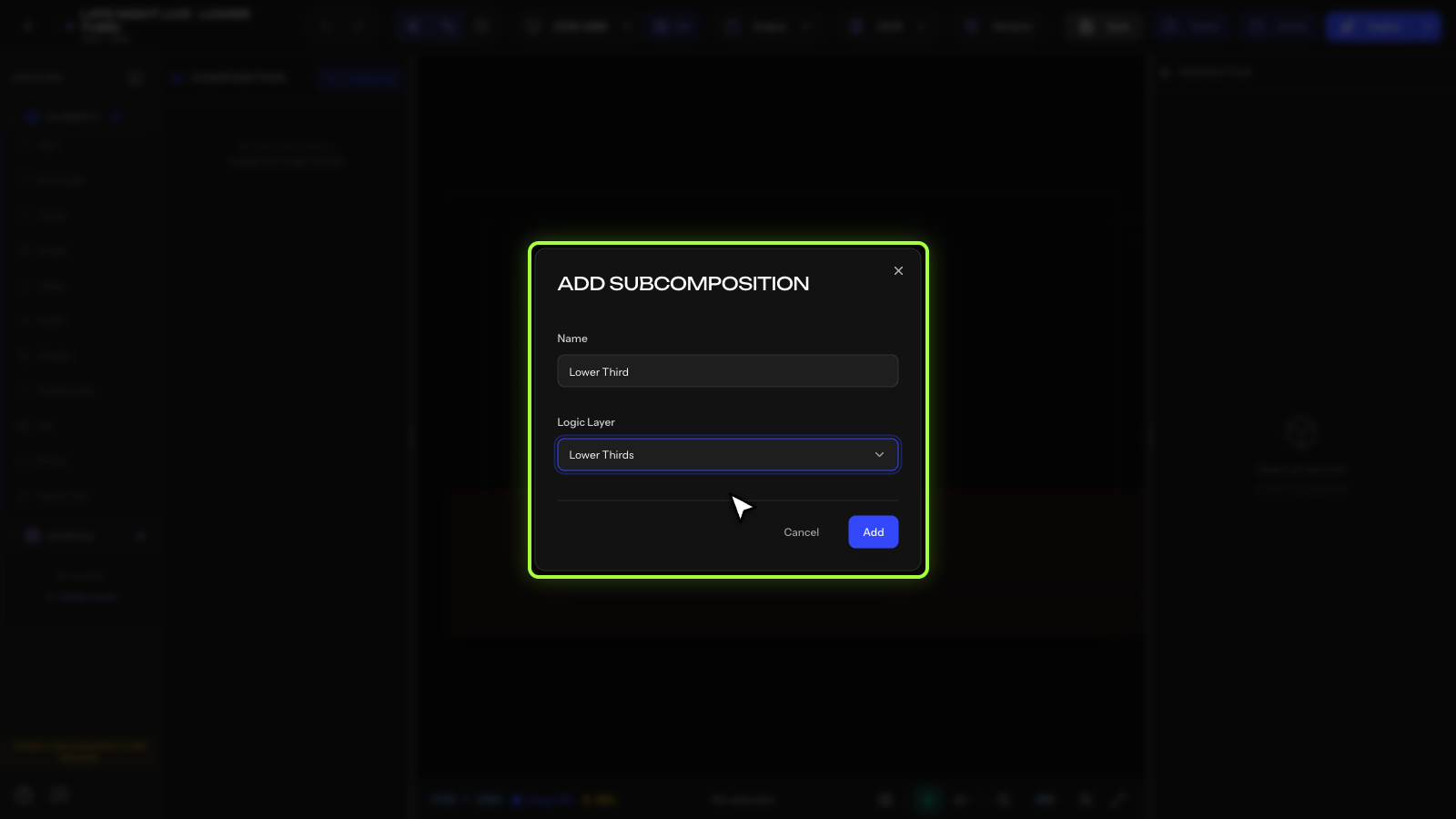
- In the Composition panel, click + Subcomp.
- Enter a name (for example, "Lower Third").
- Select a Logic Layer (Lower Third, Bugs, Full Screen, Tickers, Score Bugs, Custom) and click Add.
- The subcomposition appears in the tree. You can now add elements inside it.
Naming best practices
Use clear, short names, because they appear on Helmo Control buttons:
- "Lower Third" instead of "LT Background with Name"
- "Score" instead of "Scoreboard Overlay Version 2"
- "Ticker" instead of "Bottom Crawl Text"
Logic Layers
Logic Layers categorize your subcompositions:
- Lower Thirds: name/title overlays at the bottom
- Bugs: corner elements (logos, clocks)
- Full Screen: full-screen graphics
- Tickers: scrolling text overlays
- Score Bugs: score displays
- Custom: anything else
These are for organization only. They don't change behavior.
Renaming
Double-click the subcomposition name in the tree, or right-click > Rename.
Deleting
Right-click > Delete. This removes the subcomposition and all elements inside it.