Navigating the Graphics Editor interface
A tour of the Graphics Editor: composition tree, canvas, inspector, toolbar, onboarding tour and the help cluster.
The Graphics Editor has four main areas.
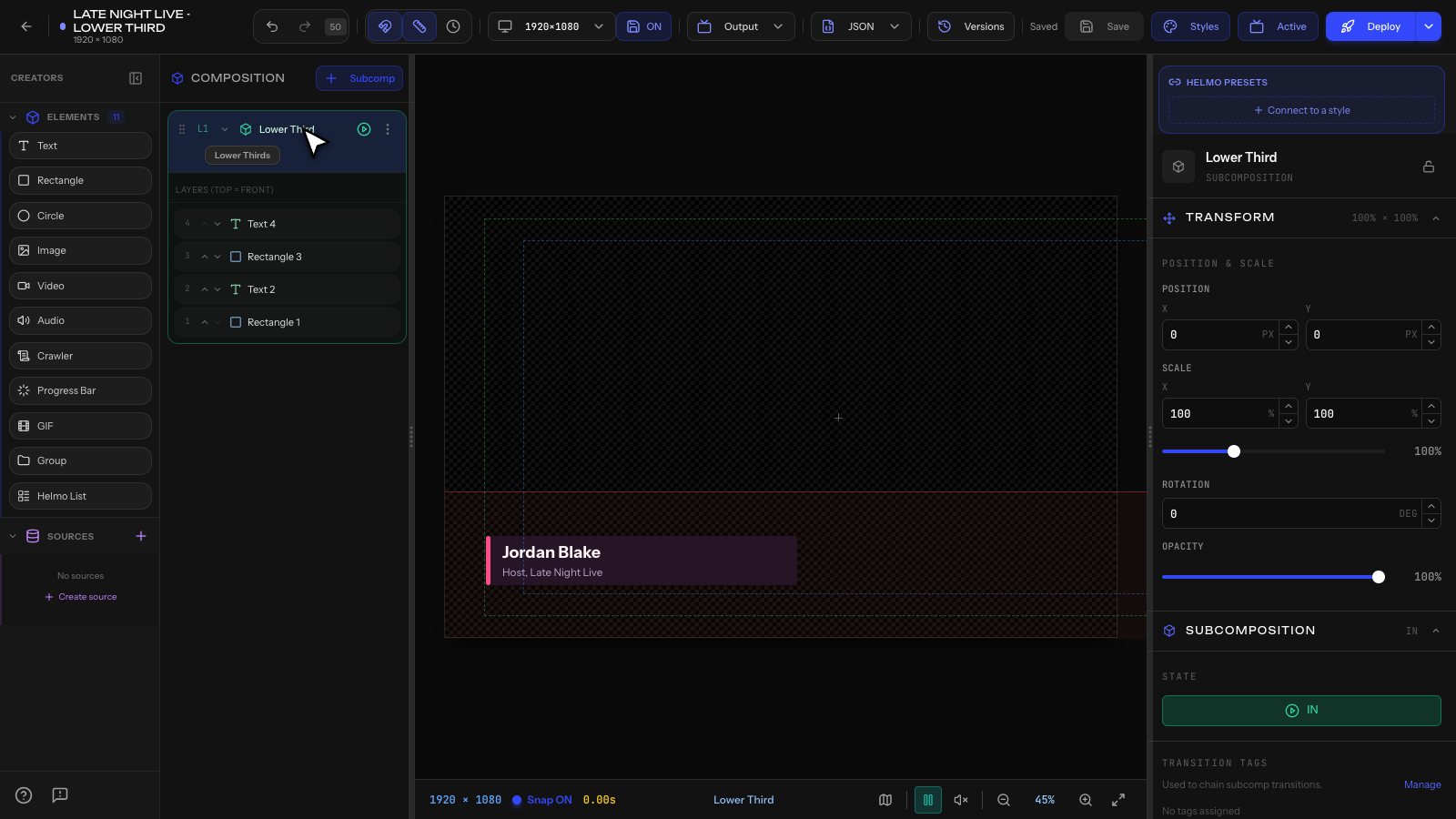
1. Composition Tree (left panel)
Shows the hierarchy of your graphic: subcompositions, groups, and elements. Click any item to select it on the canvas. Drag items to reorder.
2. Canvas (center)
The main design area where you see and edit your graphic at 1920×1080. You can:
- Click to select elements
- Drag to move elements
- Scroll to zoom in/out
- Hold Space + drag to pan
- Drag handles to resize
3. Inspector (right panel)
Also called the Property Panel. Shows properties for the selected element. The content changes based on what you select:
- For Text: font, size, color, alignment, shadow
- For Rectangle: fill, border, border radius, opacity
- For Image: source, fit mode, mask
- For Subcomposition: animation presets, logic layer, state
4. Toolbar (top)
Contains quick actions: undo, redo, zoom controls, safe area toggles, deploy button, and settings.
Elements and Sources
On the far left (the Creators column) you'll find the Elements panel with all element types, plus the Sources panel for Helmo Sources (live data). You add elements by drag-and-drop from the toolbar: grab any element type and drag it onto the canvas to place it. There's no separate "insert" step.
Guided onboarding tour
The first time you open the editor, a guided onboarding tour walks you through the interface step by step, with a short video for each stop:
- Canvas: the design surface
- Elements: dragging in text, shapes, media, and more
- Inspector: editing the selected element's properties
- Animations: IN/OUT presets and states
- Connections: binding live data and Helmo Presets
- Output: deploying and getting your Output URL
You can step forward and back at your own pace, and the videos show each area in action.
Help cluster
A small help cluster stays pinned at the bottom of the left panel so assistance is always one click away:
- Help: re-launch the onboarding tour any time, or jump to the documentation.
- Feedback: send us a note or report an issue without leaving the editor.
Tips
- Use Ctrl+Z / Ctrl+Y for undo/redo (50 steps).
- Hold Shift while resizing to lock aspect ratio.
- Double-click a text element to edit text directly on canvas.