The Property Panel: editing element properties
Use the Property Panel (labeled Inspector in the editor) to change colors, fonts, sizes, positions and animation settings.
ReferenceBeginnerUpdated
The Property Panel, labeled Inspector in the editor, is the right-side panel. It shows the settings for whatever you have selected. The top of the panel has a Helmo Presets bar (connect the element to a reusable style) and the bottom has the Animation section.
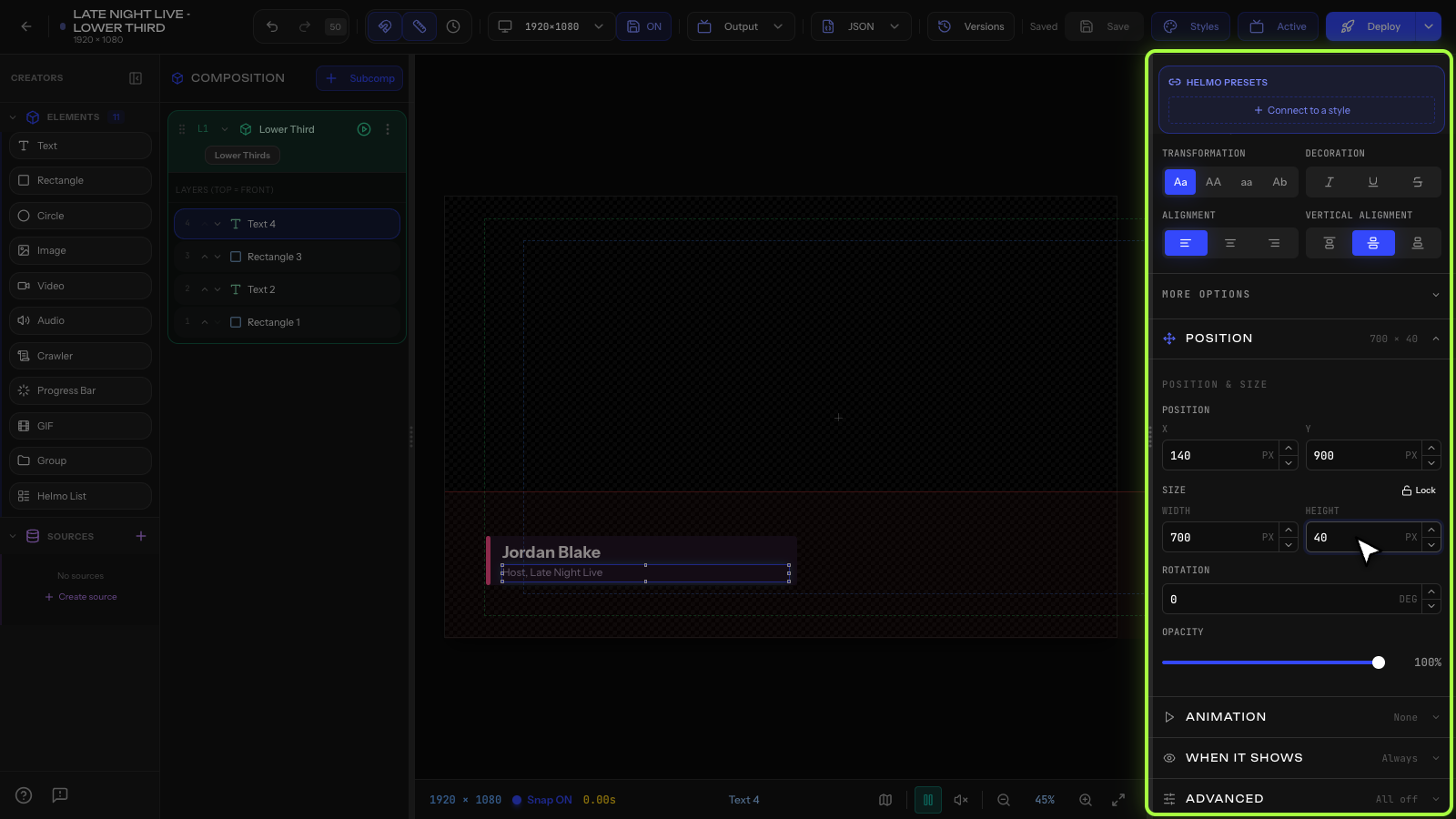
How it works
The panel is dynamic: it changes based on what you select.
Text properties
- Content: the text to display
- Font: choose from system fonts or uploaded custom fonts
- Size: font size in pixels
- Color: text color picker
- Alignment: left, center, right
- Weight: normal, bold
- Shadow: add drop shadow with offset and blur
- Letter Spacing: space between characters
Rectangle properties
- Fill: background color
- Border: color, width, style
- Border Radius: round corners (individually per corner)
- Opacity: transparency from 0% to 100%
Image properties
- Source: URL or asset from Drive
- Fit: cover, contain, fill, or none
- Mask: apply a clipping mask shape
Position and size (all elements)
- X / Y: position on canvas
- Width / Height: element dimensions
- Rotation: degrees of rotation
- Z-Index: layer order
Subcomposition properties
- Logic Layer: category (Lower Thirds, Bugs, etc.)
- IN Animation: entry animation preset
- OUT Animation: exit animation preset
- Duration: animation length
Tip
You can type exact values in any number field. Click a field and type the number directly for precise positioning.