Understanding overlay states: IN, OUT, Preview
How the IN, OUT and Preview states affect what is visible on the live output, and where you change them.
ConceptBeginnerUpdated
Every subcomposition has a state that determines its visibility.
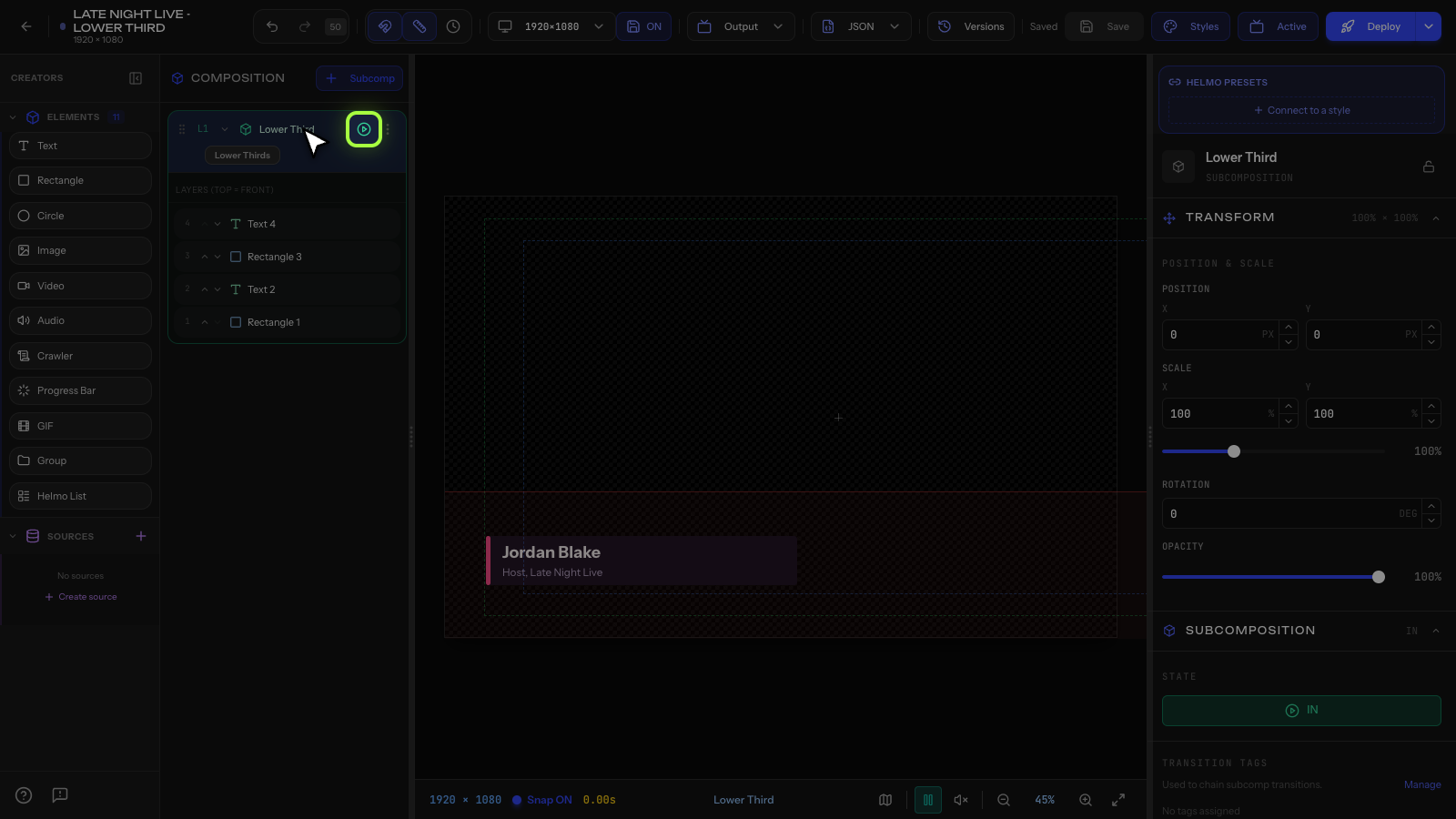
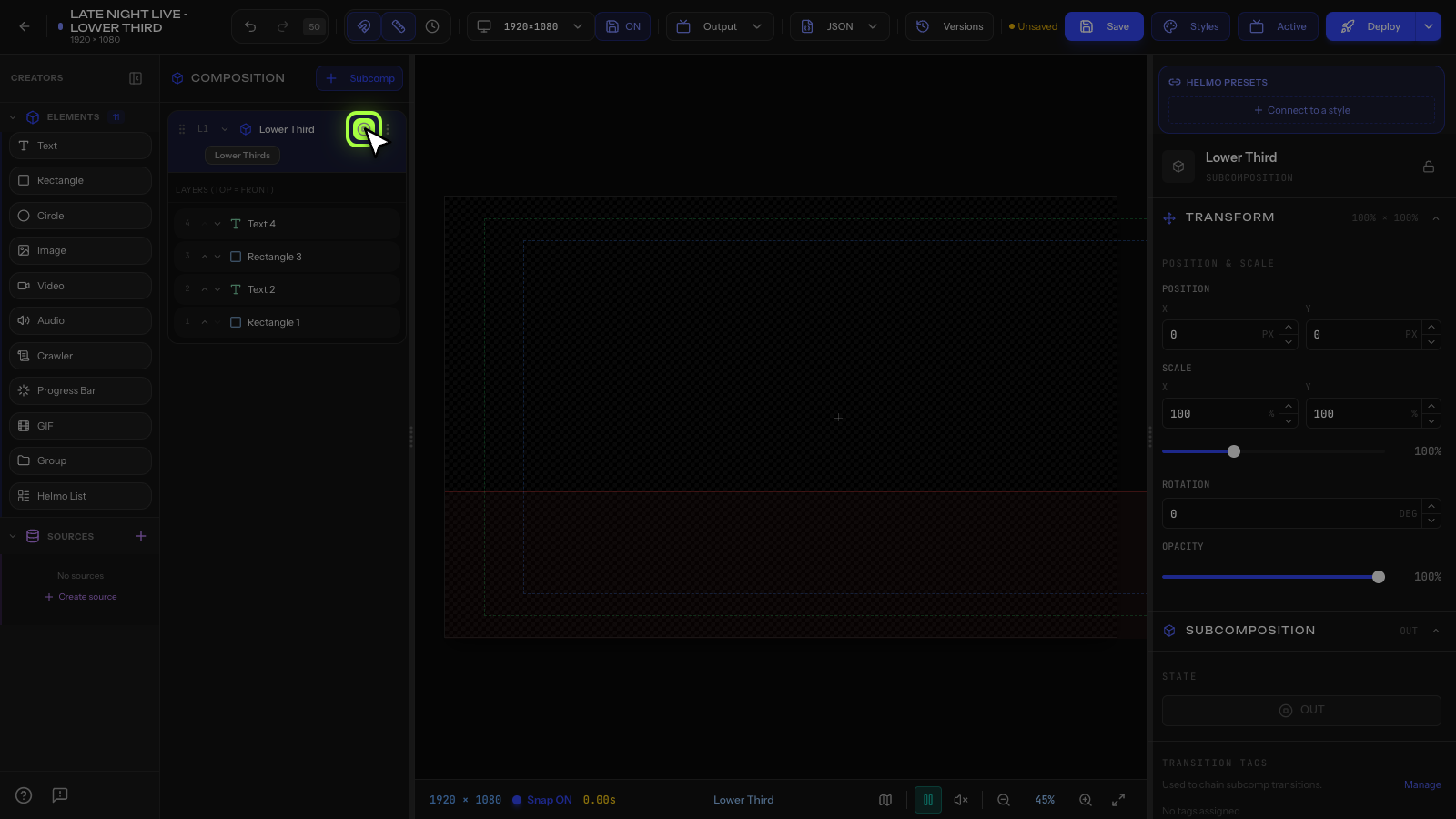
States
OUT: hidden. The overlay is not visible on the output. This is the default state.
IN: visible. The overlay has animated in and is showing on the output.
Preview: visible only in the editor, not on the live output. Use this to see how it looks without sending it to air.
Controlling states
During a live broadcast, you change states from:
- Helmo Control: press a button to toggle IN/OUT.
- Helmo Rundown: elements automatically trigger IN/OUT.
- Graphics Editor: click the state toggle in the Composition Tree (for preview).
How IN/OUT works
When you trigger IN:
- The subcomposition becomes visible.
- The IN animation plays (for example, slide in from left).
- The overlay stays visible until you trigger OUT.
When you trigger OUT:
- The OUT animation plays (for example, slide out to left).
- The subcomposition becomes hidden.
TOGGLE
Helmo Control also supports TOGGLE: if the overlay is OUT, it goes IN; if it's IN, it goes OUT. This is the most common button behavior.