Understanding the Composition Tree panel
Browse and organize your overlays, groups and elements in the Composition Tree, and learn how tree order sets z-order.
ReferenceBeginnerUpdated
The Composition Tree is the left panel in the editor that shows the structure of your graphic.
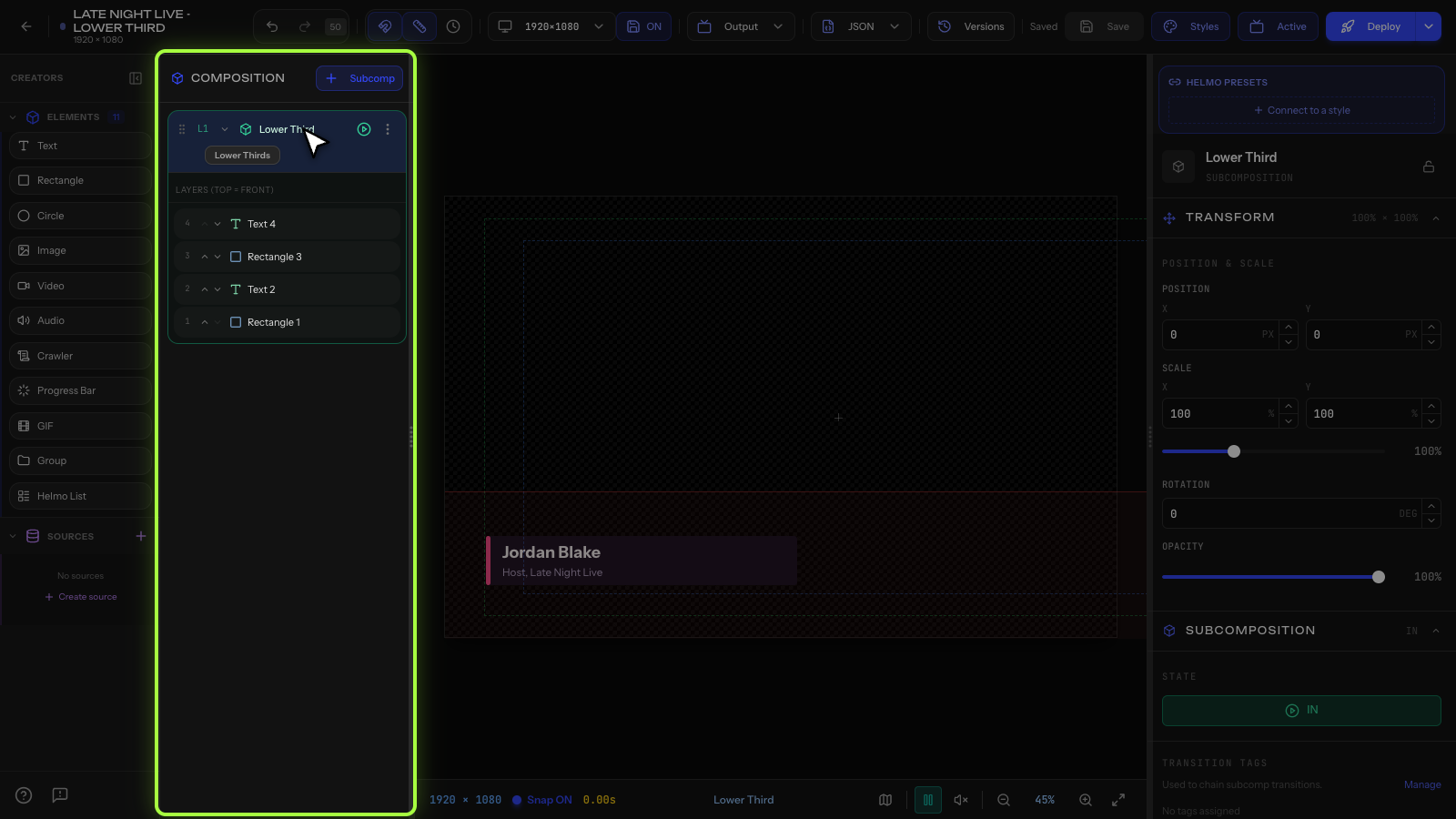
What it shows
A tree view of all elements in your graphic, organized by:
- Subcompositions (top level, your controllable overlays)
- Groups (folders to organize elements)
- Elements (text, shapes, images, etc.)
Actions
- Click an item to select it on the canvas.
- Right-click for the context menu (rename, duplicate, delete).
- Drag items to reorder or move between groups.
- Eye icon: toggle visibility in the editor.
- Lock icon: prevent accidental selection/editing.
Adding items
- Click + Subcomp to create a new overlay.
- Drag elements from the Elements panel.
- Right-click > Add Group to create a folder.
Tips
- Name your subcompositions clearly (for example, "Lower Third", "Score Bug"). These names appear in Helmo Control.
- Use groups to keep complex overlays organized.
- The order in the tree determines z-order: items lower in the list appear on top.