Update animations: animate value changes live
Animate an element when its value changes on air, using UPDATE IN/OUT presets with a sequential swap or crossfade.
Most animations play when a subcomposition comes IN or goes OUT. Update animations are different: they fire when an element's value changes while it's already on air, for example when a score updates via Helmo Control, a Helmo Source, or a Helmo List.
Where to find them
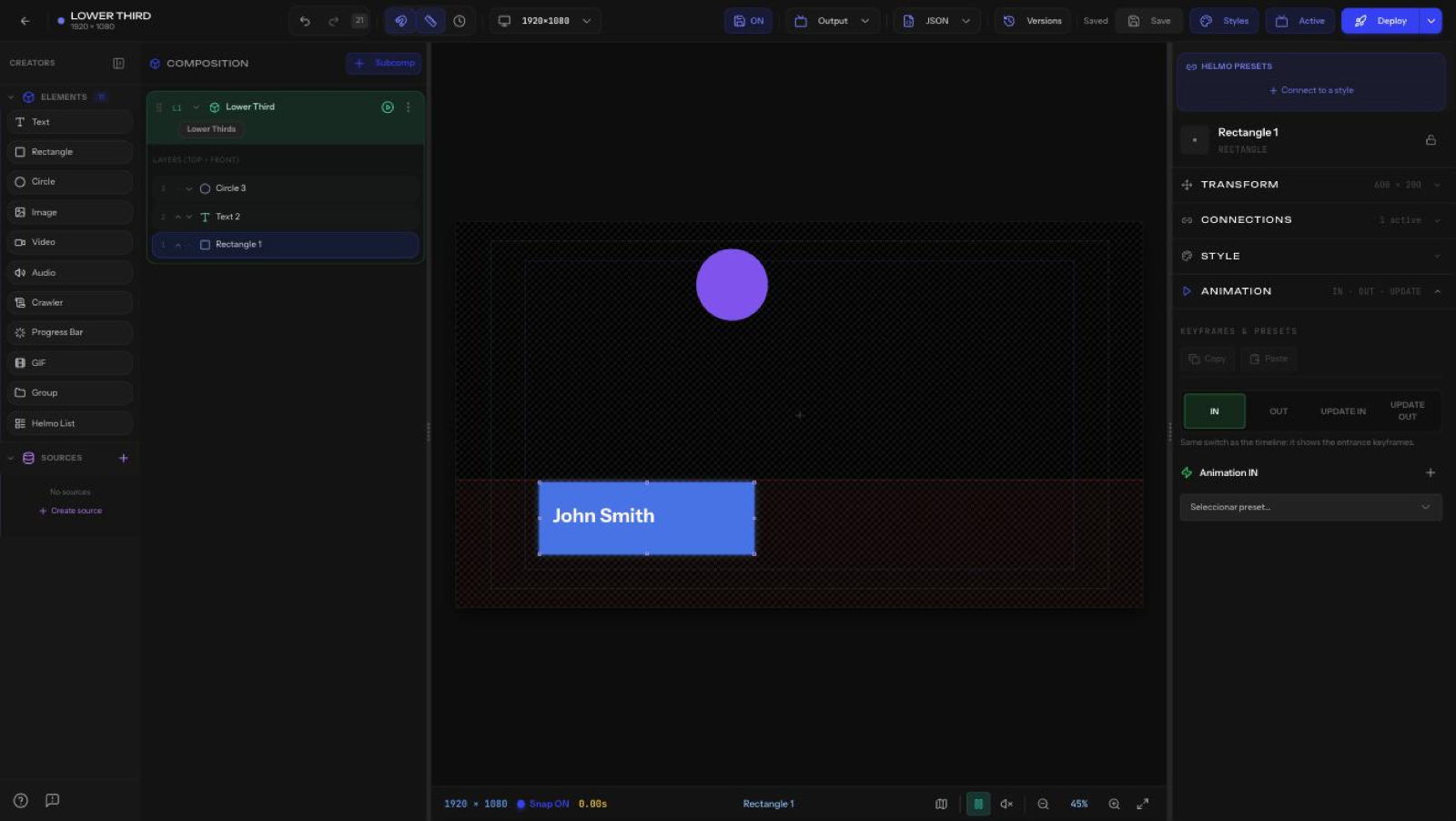
Select an element and open the Animation section of the Inspector. Beyond Animation IN and Animation OUT, you'll see Animation UPDATE IN and Animation UPDATE OUT.
How it works
When the value changes, the old value animates OUT with the UPDATE OUT preset and the new value animates IN with the UPDATE IN preset.
- Sequential swap (default): old value leaves, then the new value enters.
- Crossfade: old and new values cross over at the same time instead of leaving and entering sequentially. Enable the Crossfade checkbox.
Previewing
Use the Simular cambio (Simulate change) button to trigger a value change in the editor and watch the update animation play, without going on air.