Masks: Clip, Knockout & Fill
Use shapes or text to clip, knock out or fill other elements, and understand target versus source.
Masks let one element control the visibility or fill of another. You set a mask from the Mask section of an element's Inspector. There are three modes.
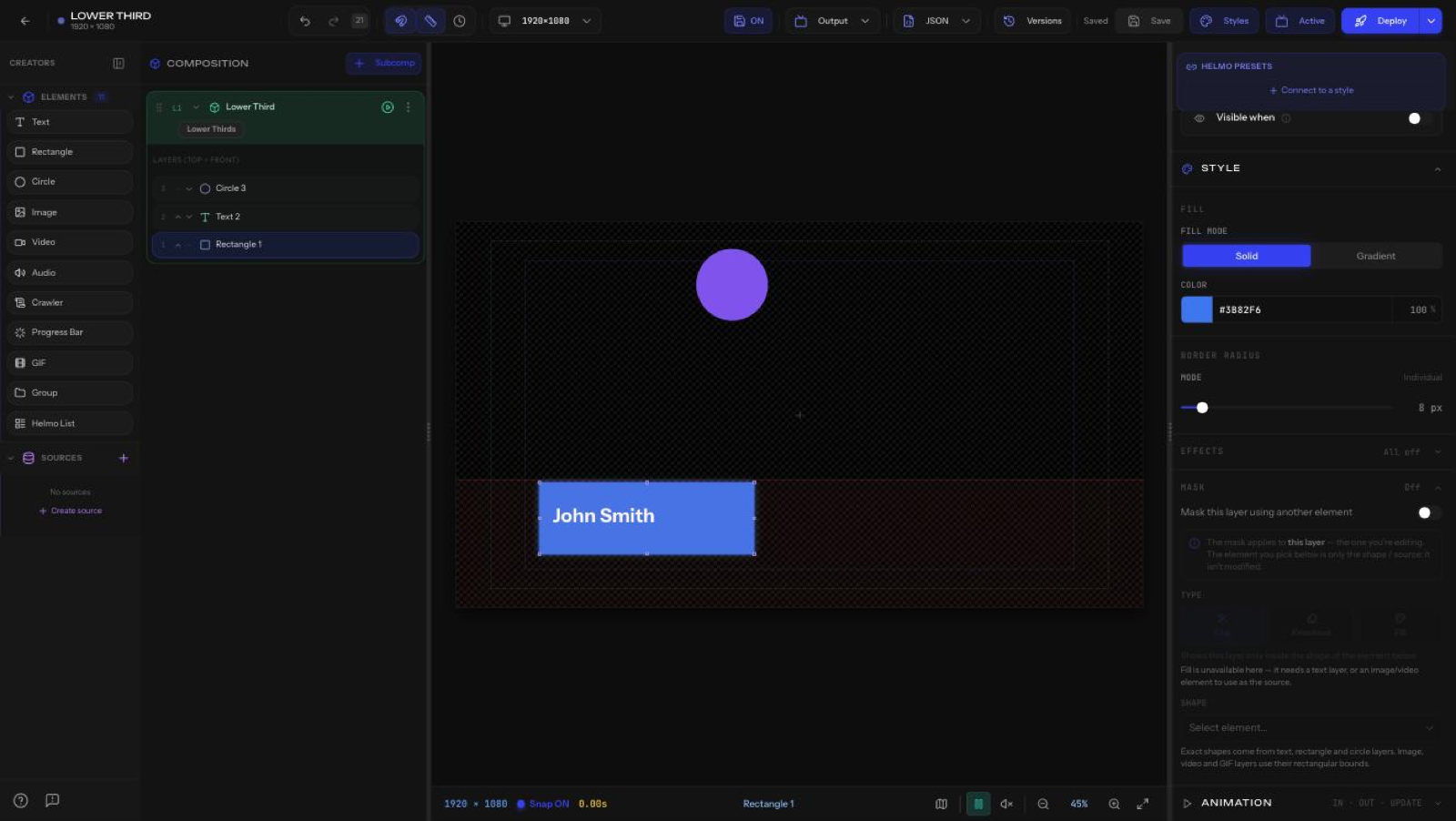
The three modes
- Clip: the target is visible only inside the shape. Everything outside the shape is hidden.
- Knockout: the shape is cut out of the target (clip inverted). The target shows everywhere except inside the shape.
- Fill: paints the target with the image or color of the source. Available for text and media.
How masks work
The mask lives on the element that is being clipped, the TARGET. The element you choose in the Mask section is just the SHAPE (the SOURCE) that defines the cut.
- You can use text as a mask shape (great for image-filled headlines).
- Masks stay consistent with animation: in both the editor and the live Output, the animated position of the source is applied while the target rides along with its own transform.
To make an image show through letters, put the image as the TARGET and choose the text element as the mask SHAPE in Fill or Clip mode.
If your Clip or Knockout configuration would leave the layer completely hidden or empty (for example, the shape and target don't overlap, or Knockout covers the whole target), the editor shows an amber notice right in the Mask section. It's a heads-up that the current mask setup produces nothing visible. Adjust the shape, mode, or positions to bring the layer back.