Applying image filters & effects
Apply non-destructive filters such as blur, brightness, contrast and saturation to image and video elements.
ReferenceIntermediateUpdated
Image and Video elements can be styled with filters: non-destructive effects applied live in the editor and in the Output. Filters live in the Effects section of the Property Panel (Inspector) when an Image or Video element is selected.
Where to find them
- Select an Image or Video element on the canvas.
- In the Inspector, open the Effects section.
- Adjust each filter with its slider or value field. Changes preview instantly on the canvas and carry through to the live Output.
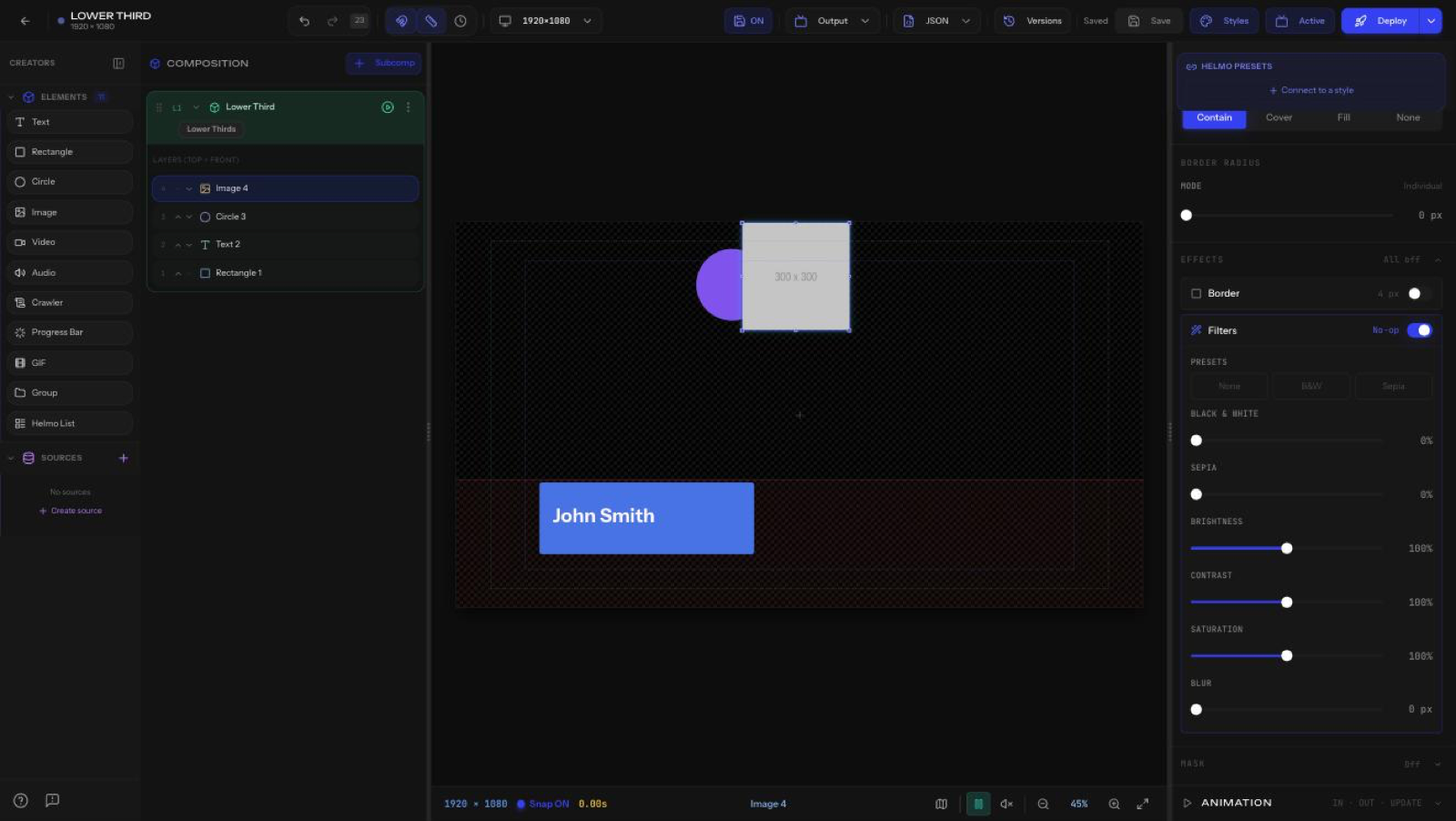
Filters are non-destructive: they never alter the source file, so you can dial them back to zero at any time.
Available filters
- Blur: softens the element (in pixels). Great for backgrounds and depth-of-field looks.
- Brightness: lightens or darkens the image.
- Contrast: increases or flattens the difference between lights and darks.
- Saturation: boosts colors for punch, or pulls them out toward black-and-white.
- Grayscale: desaturates fully to a neutral monochrome.
- Hue rotate: shifts all colors around the color wheel (in degrees).
- Sepia: warm, vintage tint.
- Invert: flips colors to their opposites.
- Opacity: controls overall transparency of the element.
Stack multiple filters together to build a custom look.
Use cases
- Spotlight: pair a filtered photo with a caption (a "Spotlight" block). Lift brightness/contrast and add a touch of saturation so the subject pops against the overlay.
- Desaturated backgrounds: drop saturation (or use grayscale) and add a little blur on a background photo or video so foreground text and lower thirds stay readable.
- Mood and branding: use sepia or hue rotate to match footage to a show's color palette.
- Dim on air: lower brightness or opacity to push a background behind live graphics.
Tips
- A little goes a long way: subtle contrast and saturation usually read better on broadcast than heavy settings.
- Combine a blur + reduced brightness background with bright text for maximum legibility.
- Filters animate with the element, so they hold up through IN/OUT animations and inside masks.
- Reset any slider to 0 (or its default) to remove that filter without deleting the element.